ChatGPT Images 2.0
OpenAI has officially released ChatGPT Images 2.0, transitioning from a “creative tool” to a “visual workflow platform for usable outputs.” This marks the first time OpenAI has integrated reasoning into an image model, a feat previously achieved only by Google’s Nano Banana Pro.
All images in this article are generated by ChatGPT!
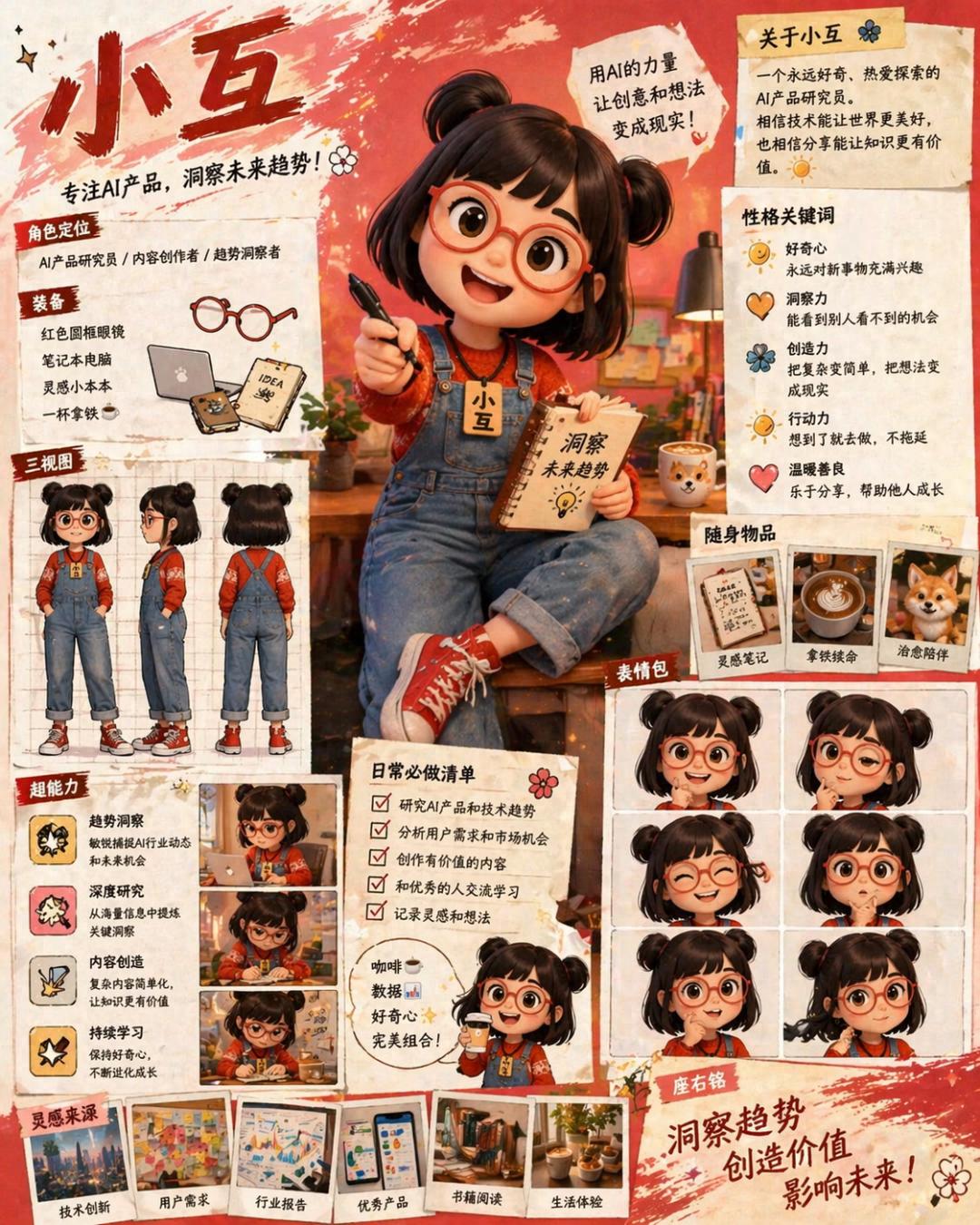
Core Changes
- Reasoning Capability: The model analyzes tasks before generating images, allowing it to research online if needed.
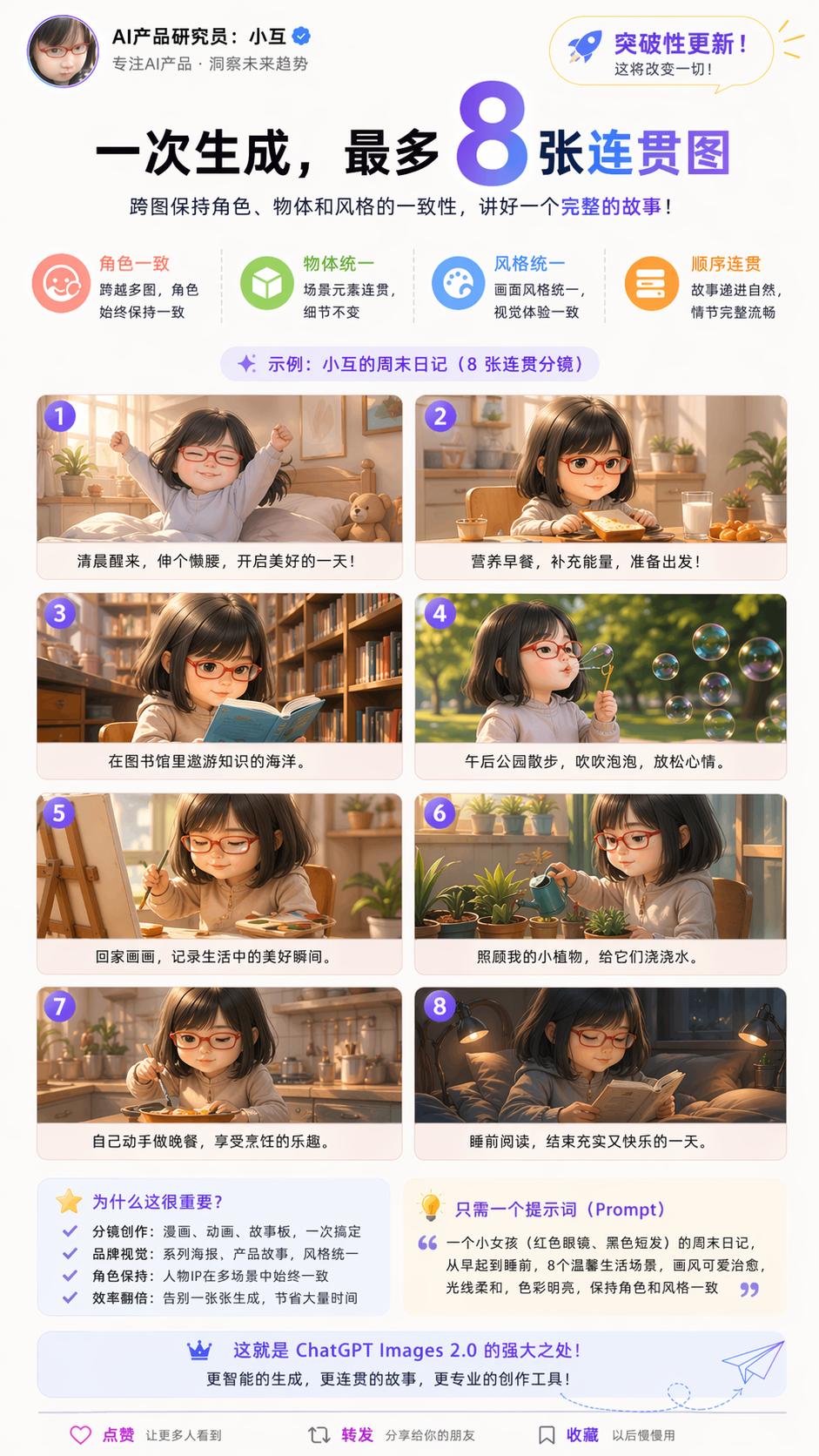
- Generate Up to 8 Coherent Images: It can maintain consistency across characters, objects, and styles, making it easier to create storyboards and multi-image series.
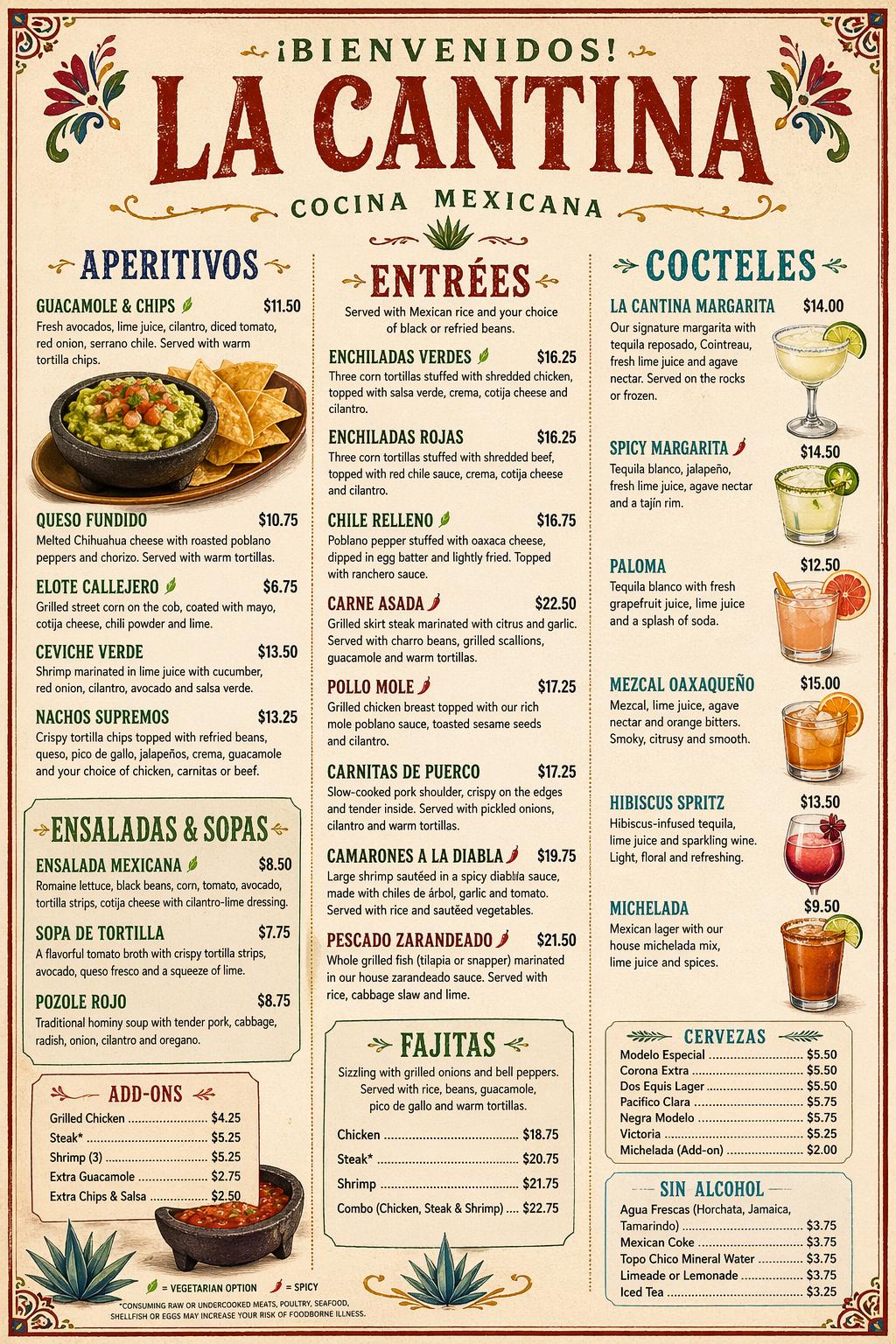
- Clear Text Rendering: Small text, UI elements, and icons can be accurately rendered, as demonstrated in a TechCrunch test with a restaurant menu.
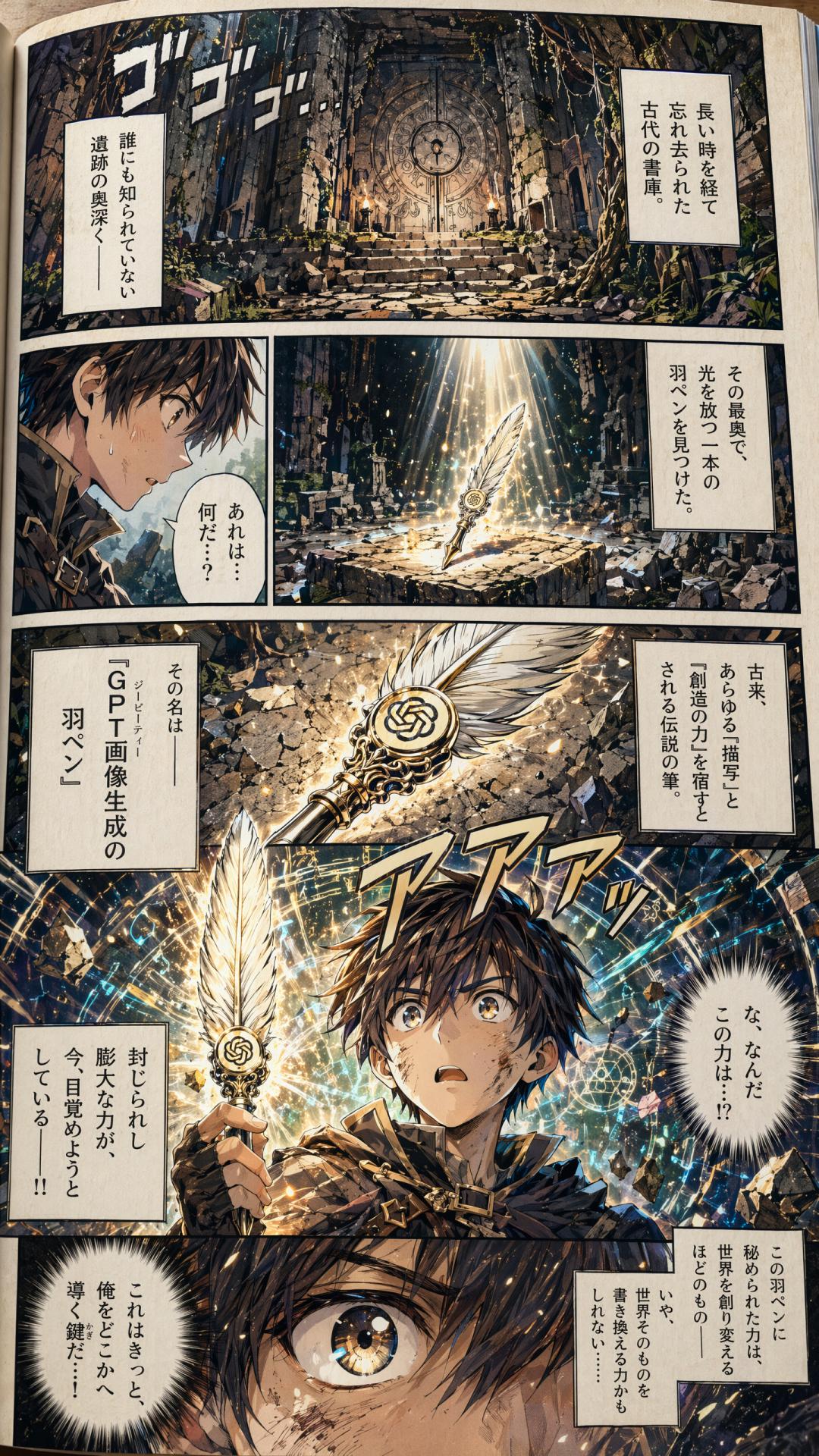
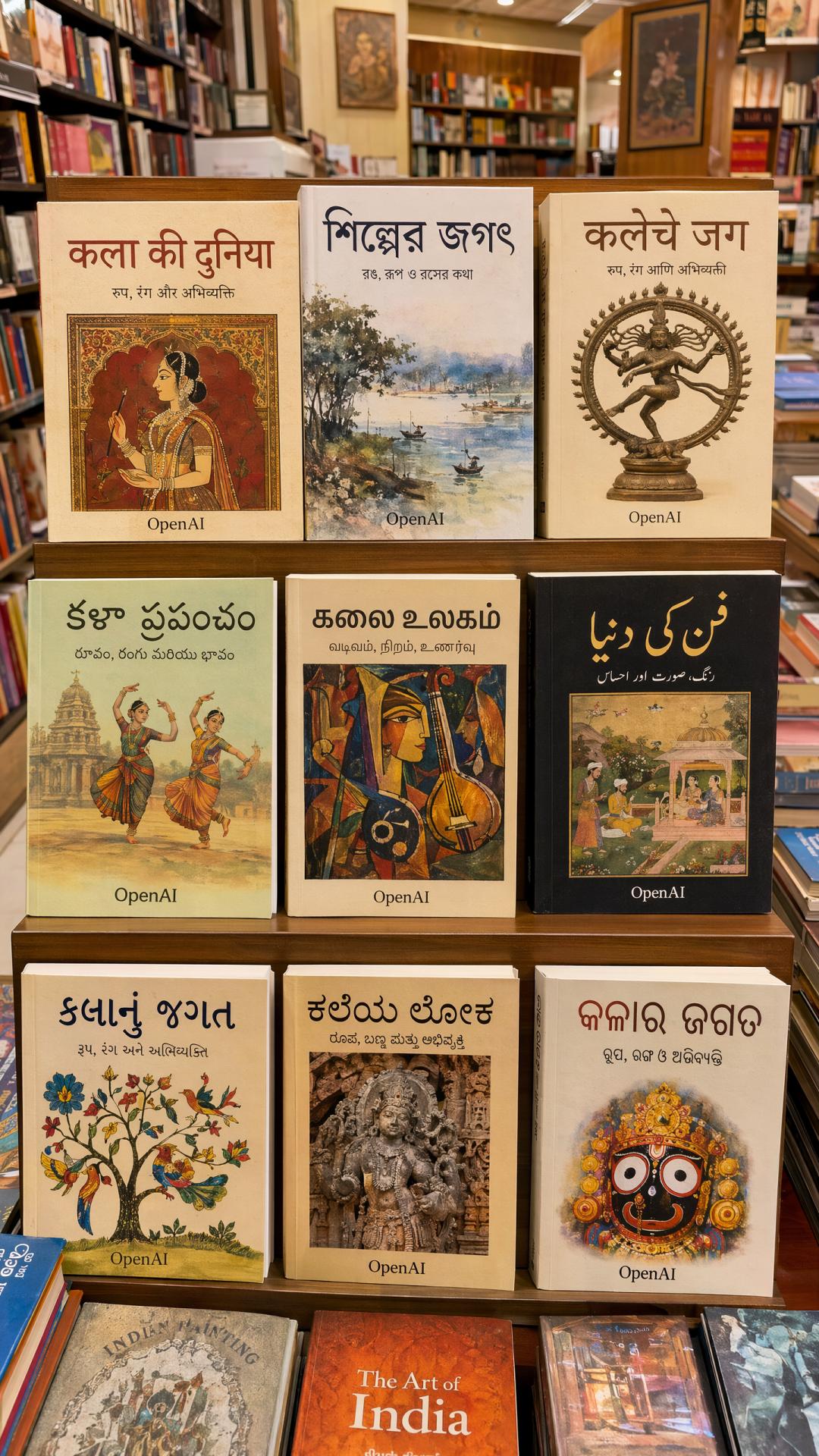
- Improved Multilingual Support: Enhanced rendering for non-Latin scripts, including Japanese, Korean, Hindi, and Bengali, allows for seamless integration into designs.
- Flexible Dimensions: Supports a wide range of aspect ratios from 3:1 to 1:3, suitable for banners, vertical screens, and more.
- 2K High Definition: The API supports up to 2K resolution, making large images cheaper than the previous version.
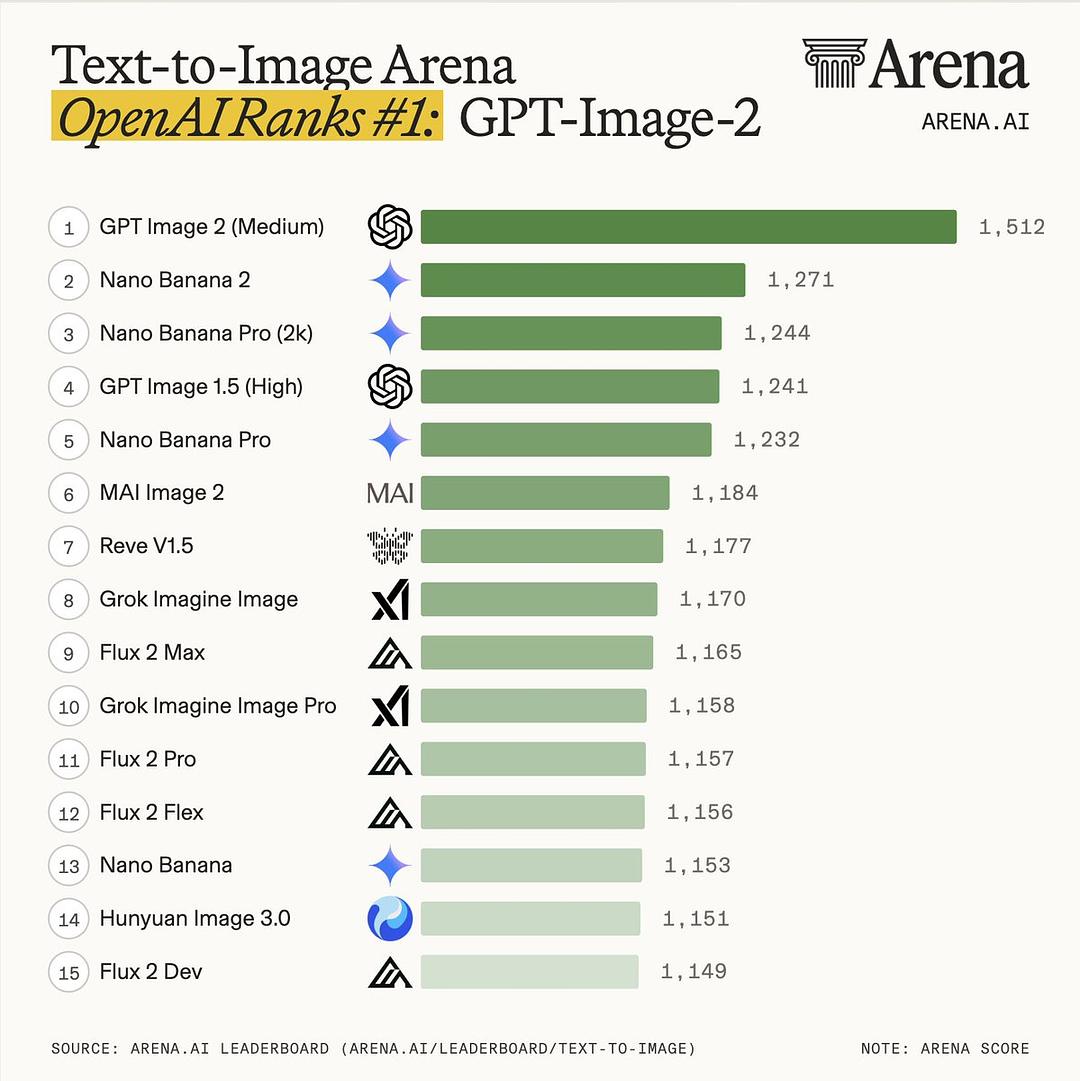
- Top Rankings on Image Arena: ChatGPT Images 2.0 has topped all three categories on Image Arena, outperforming the second-place Nano Banana 2 by a significant margin of 242 points.
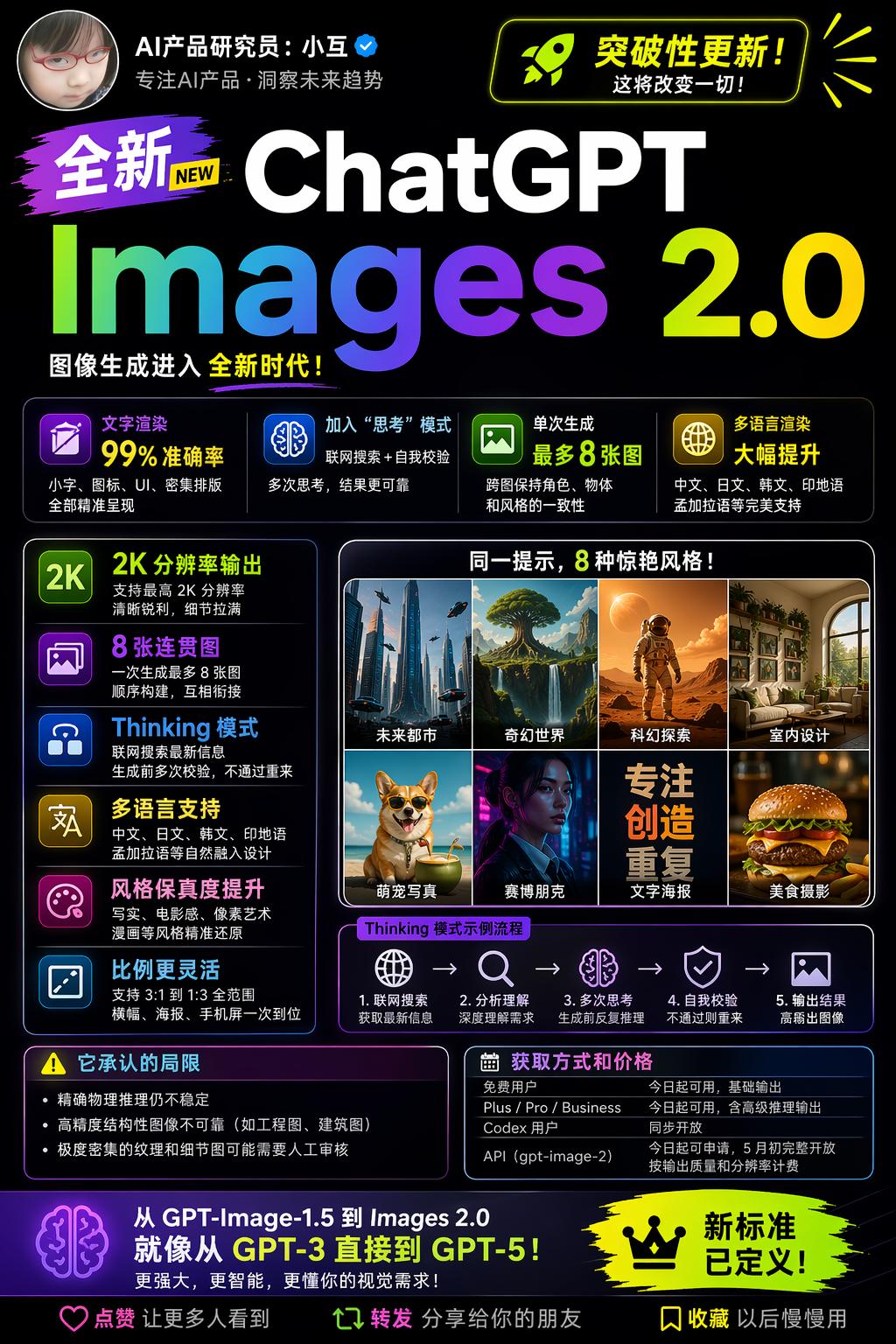
OpenAI’s official blog describes this upgrade as: “Images are a language, not decoration. A good image does what a good sentence does: it selects, arranges, and reveals.”
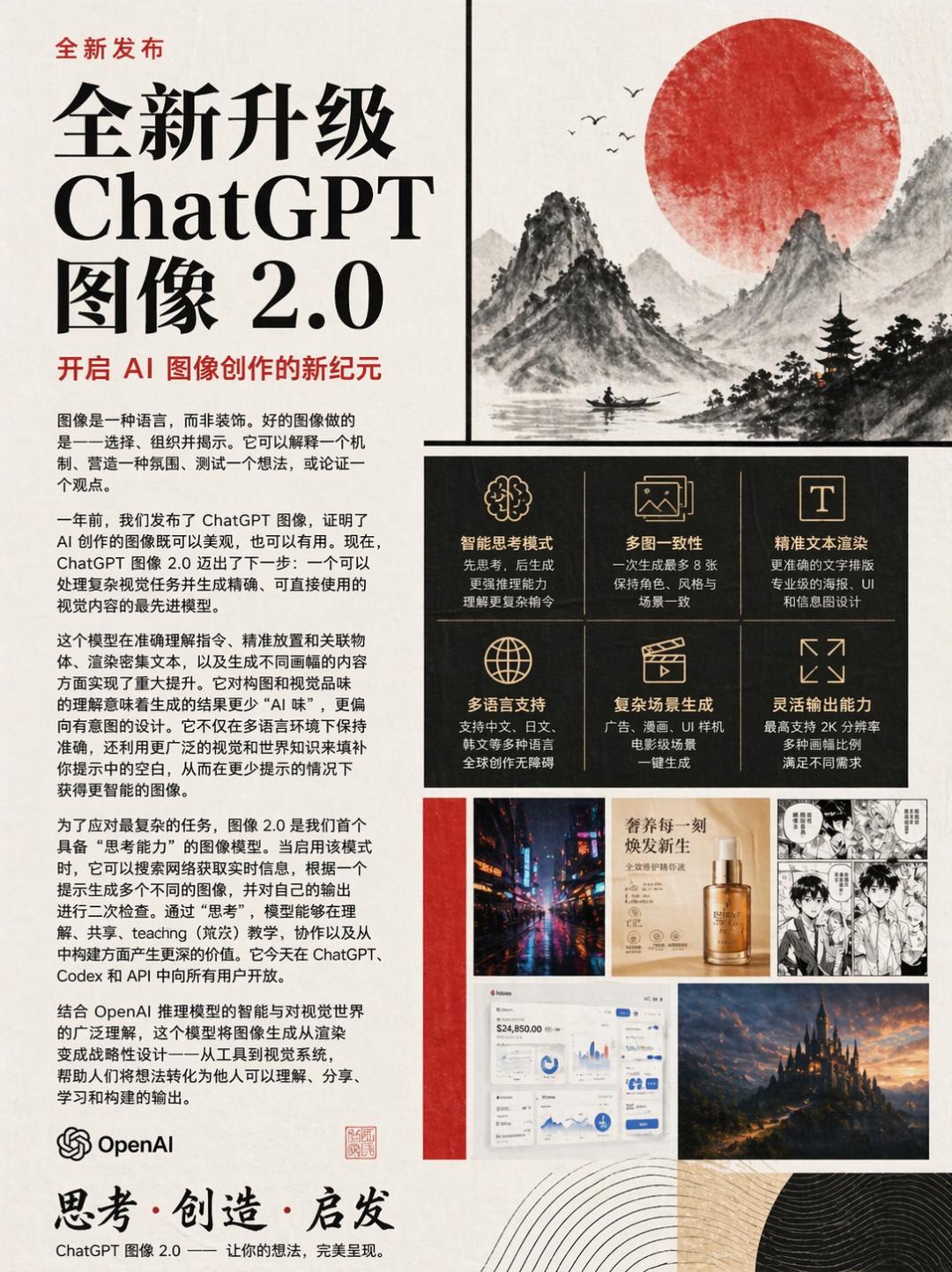
The following image is a self-introduction generated by GPT itself:
Integrating Reasoning into Image Generation
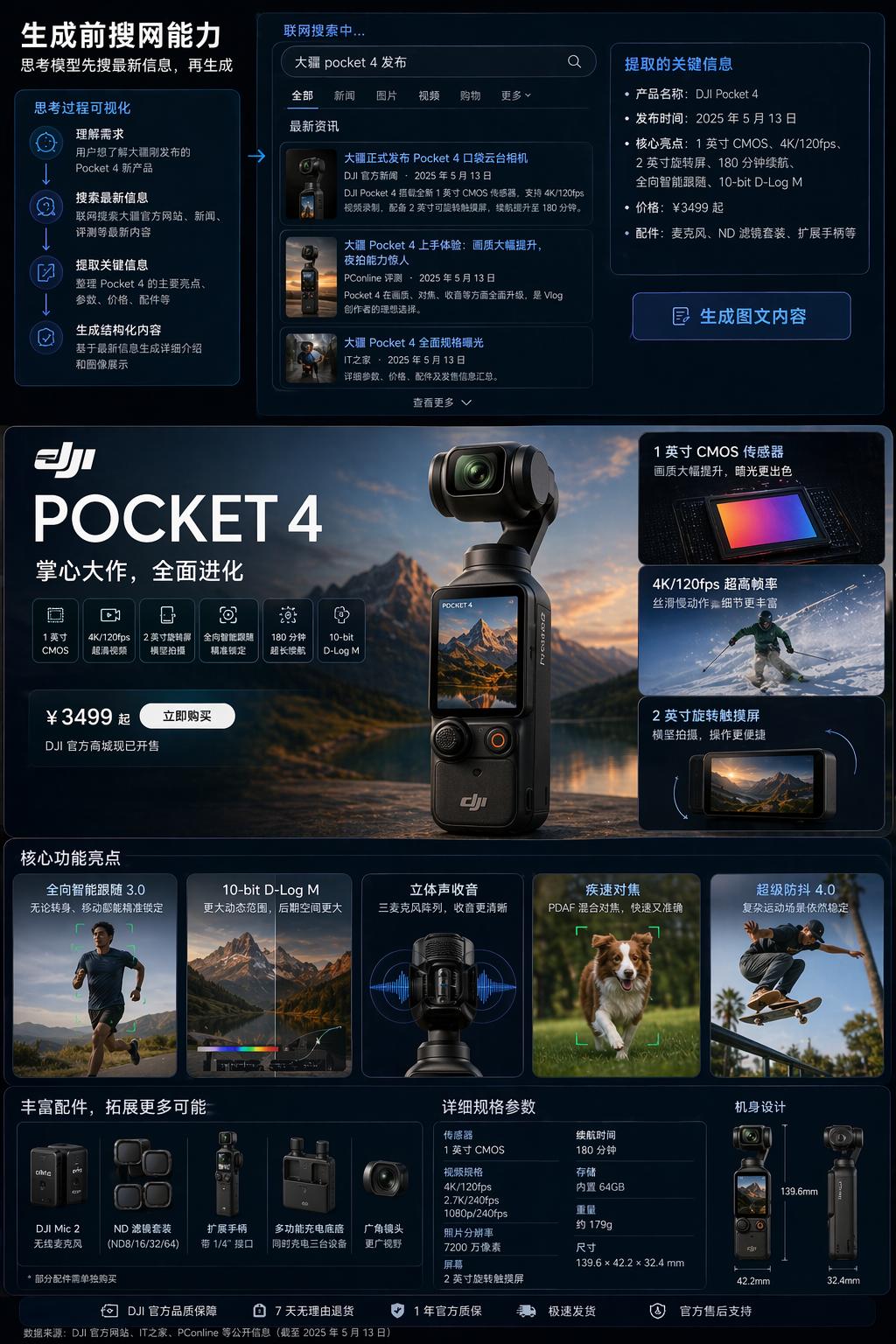
The reasoning capability is the most significant change. Previous image models rendered images directly from prompts, but ChatGPT Images 2.0 breaks tasks down for analysis, researching online when necessary before generating images.
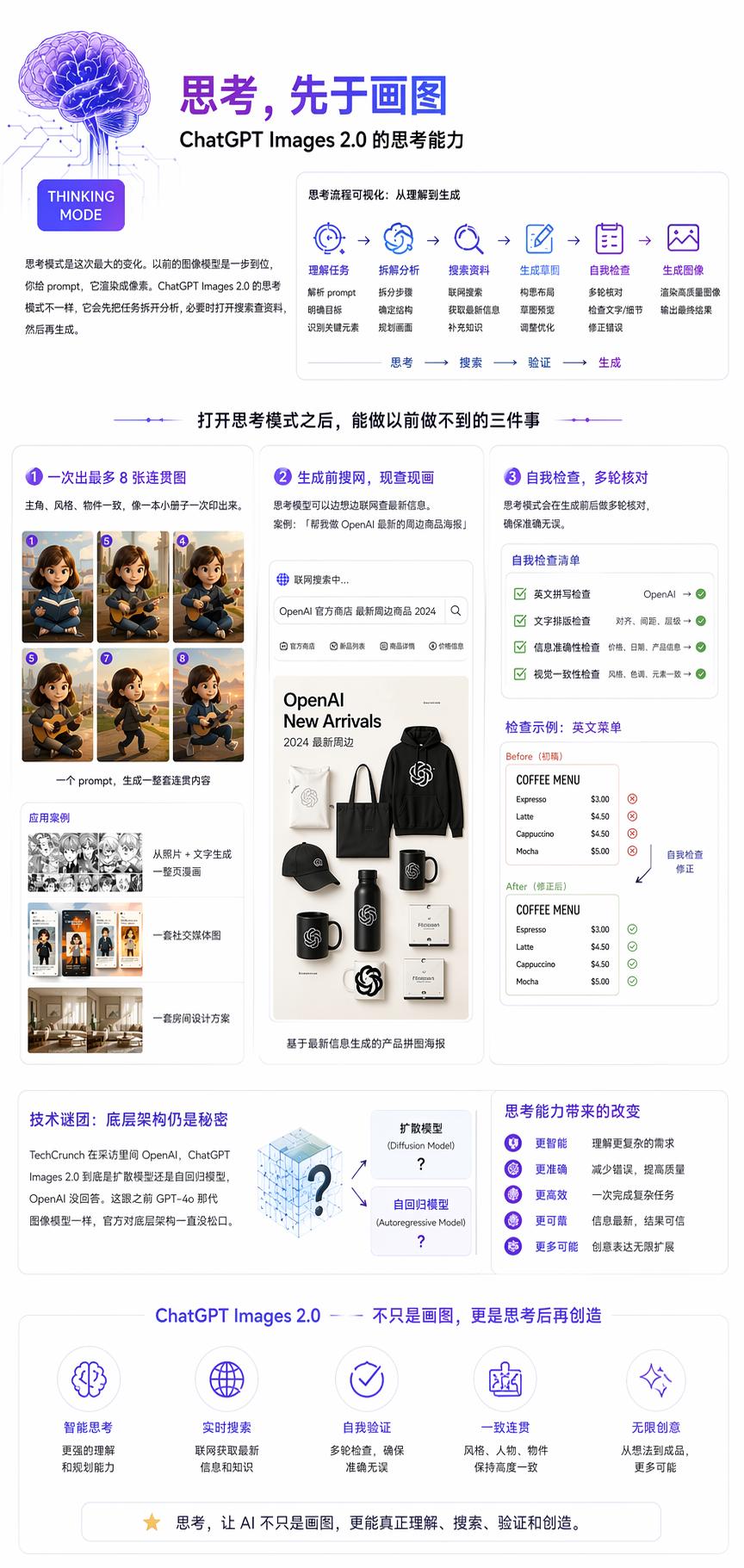
With the reasoning mode activated, it can accomplish three tasks that were previously impossible:
- Generate Up to 8 Coherent Images: Previously, creating a storyboard required generating images one by one, often resulting in inconsistent styles. Now, a single prompt can yield 8 images with consistent character appearances and styles, akin to printing a small booklet.
- Online Research Before Generation: The reasoning model can search for the latest information while thinking. For example, a prompt like “Create a poster for OpenAI’s latest merchandise” prompts the model to check the official store for new items before creating a collage.
Prompt: Generate an image showcasing the ability to search online before generating, such as a detailed introduction and image display of DJI’s newly released Pocket 4.
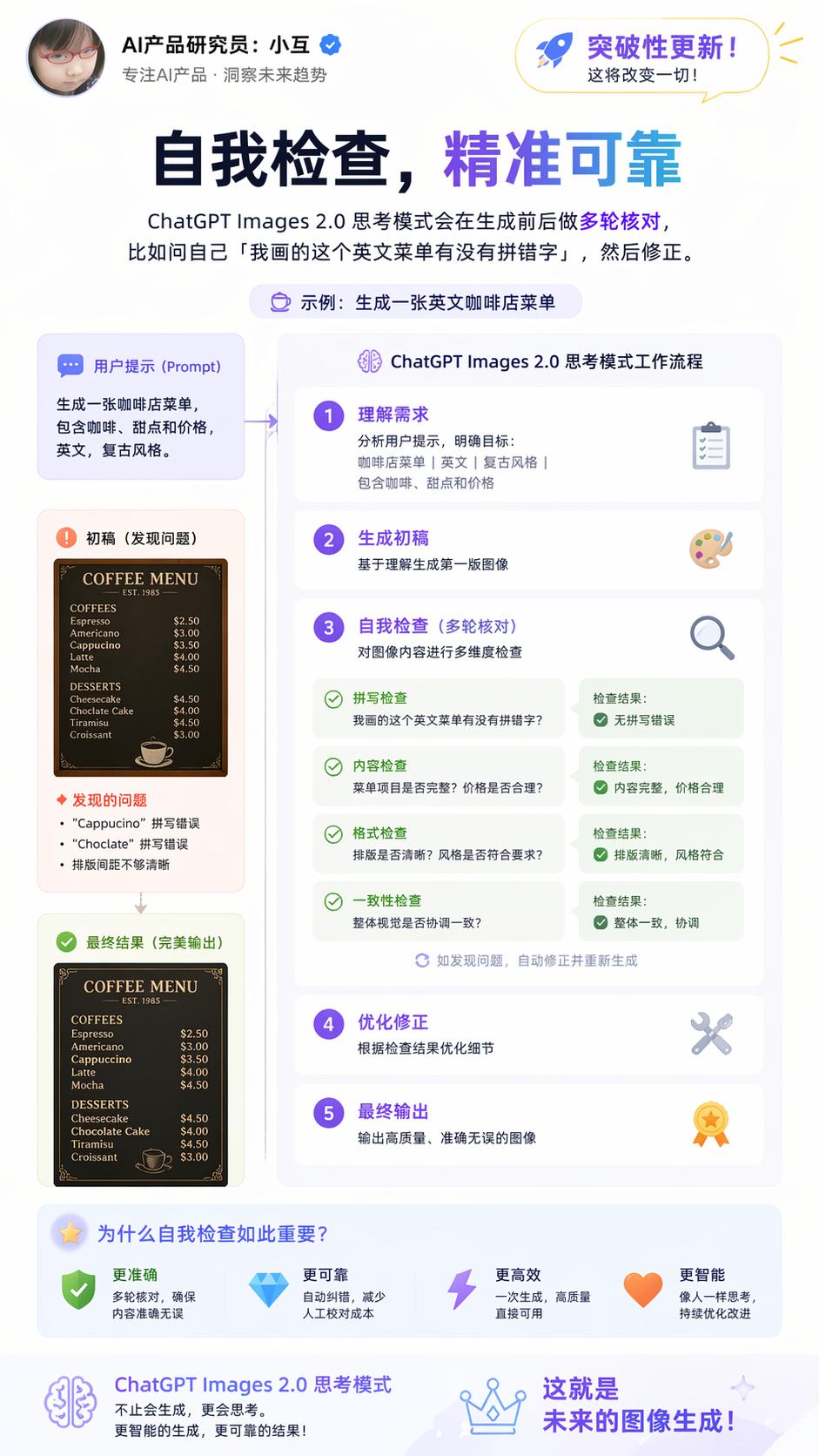
- Self-Verification: The reasoning model performs multiple checks before and after generation, such as asking itself, “Did I misspell any words on this English menu?” and making corrections. When asked about the model’s architecture, OpenAI did not clarify whether ChatGPT Images 2.0 is a diffusion or autoregressive model, maintaining the same secrecy as with previous models.
Improved Text Clarity and Multilingual Support
Early image generation models often struggled with text rendering, primarily because diffusion models learned visual texture patterns, with text occupying a small portion of pixels. Images 2.0 systematically addresses this issue.
Specific improvements include:
- Small Text: Labels, annotations, and chart titles are rendered without distortion or misspellings.
- Icon Text: Button labels and text in UI elements are accurately rendered.
- UI Elements: Text in screenshots, product interface images, and app prototypes is clear.
- Dense Typesetting: Multiple paragraphs and high-density layouts maintain correct character and line spacing.
- Subtle Style Constraints: Different font styles and handwritten effects are accurately reproduced.
- Resolution: The API supports up to 2K output, ensuring text clarity.
OpenAI states that the model can “follow instructions, retain details, and render fine elements that often cause image models to fail.”
Images 2.0’s support for non-Latin scripts is a targeted upgrade, covering languages such as:
- Japanese (Hiragana, Katakana, Kanji)
- Korean (Hangul)
- Chinese (Simplified, Traditional)
- Hindi (Devanagari)
- Bengali
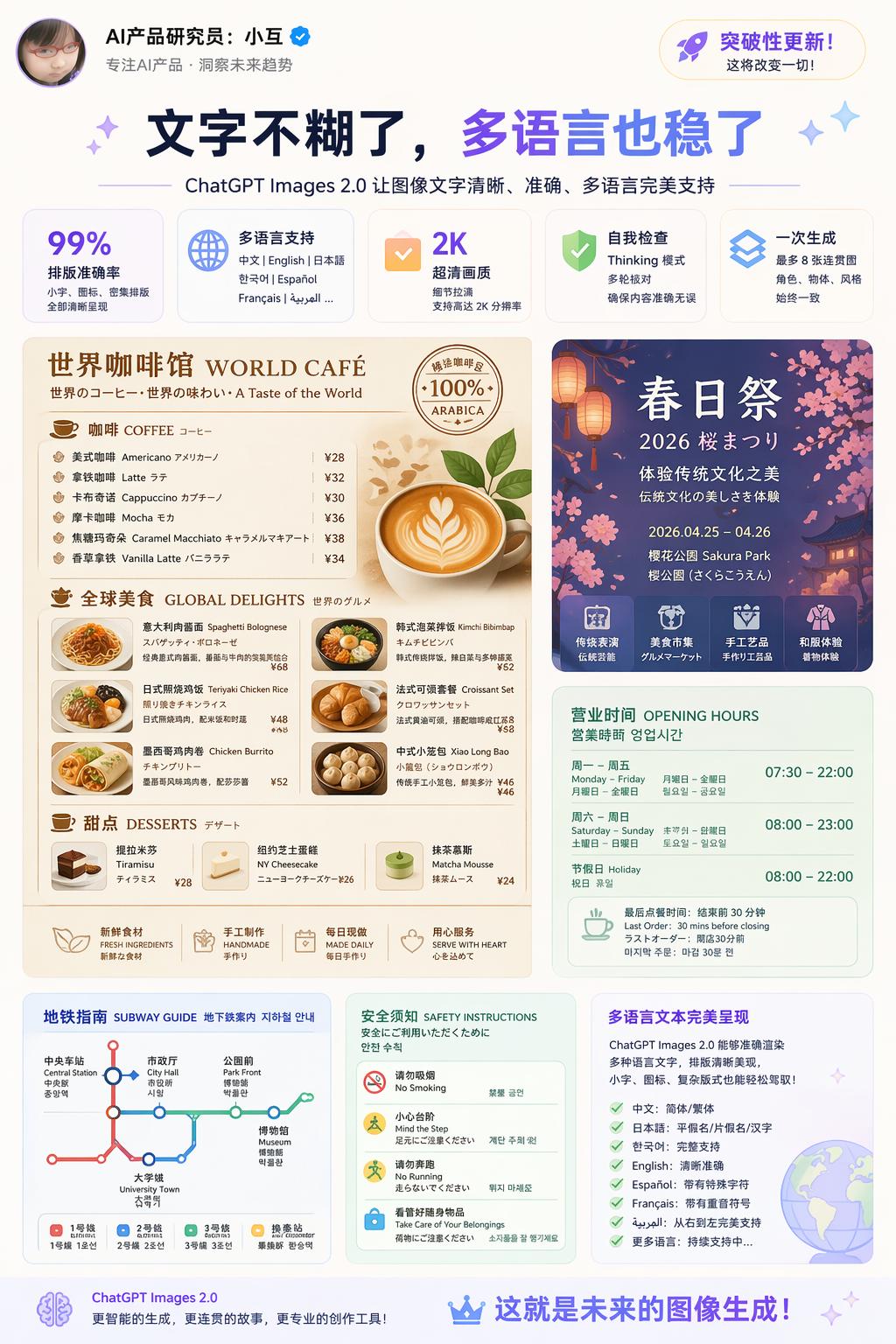
The focus is not just on correctly rendering characters but also on integrating language as a design element, making labels and annotations appear as natural as native designs. This is a significant capability expansion for users creating posters, educational charts, and multilingual branding materials.
Prompt: Generate an image with a lot of text in multiple languages, showcasing your ability to render text clearly and beautifully.
TechCrunch tested ChatGPT Images 2.0 with the same prompt to create a Mexican restaurant menu. The resulting menu was usable, with correct spelling, reasonable prices, and a tidy layout, indistinguishable from a human-created menu.
The improvements in non-Latin text rendering are particularly notable. Previously, Japanese, Korean, Chinese, Hindi, and Bengali text often became jumbled; now, they can be seamlessly integrated into posters and comics. OpenAI provided an example of a full-page Japanese comic, where dialogue, sound effects, and titles are clearly readable.
PetaPixel’s review noted that this is not merely an enhancement in translation ability; the model can generate text as part of visual design. For instance, an image of an Indian bookstore shows the spine text in South Asian languages appearing as if printed, not just overlaid.
Aspect Ratios, Resolution, and Knowledge Cutoff
Three specific parameter changes have been made:
- Aspect Ratios: Ranging from 3:1 ultra-wide to 1:3 ultra-narrow, suitable for banners, presentation slides, posters, mobile vertical screens, and social media images without manual cropping.
- Resolution: The API supports up to 2K, with outputs beyond that still in beta and potentially unstable in quality.
- Knowledge Cutoff: Set to December 2025, this affects the model’s accuracy in generating content related to recent events, new brands, and new memes. For content related to news after 2026, the model relies on its reasoning mode to search for updates.
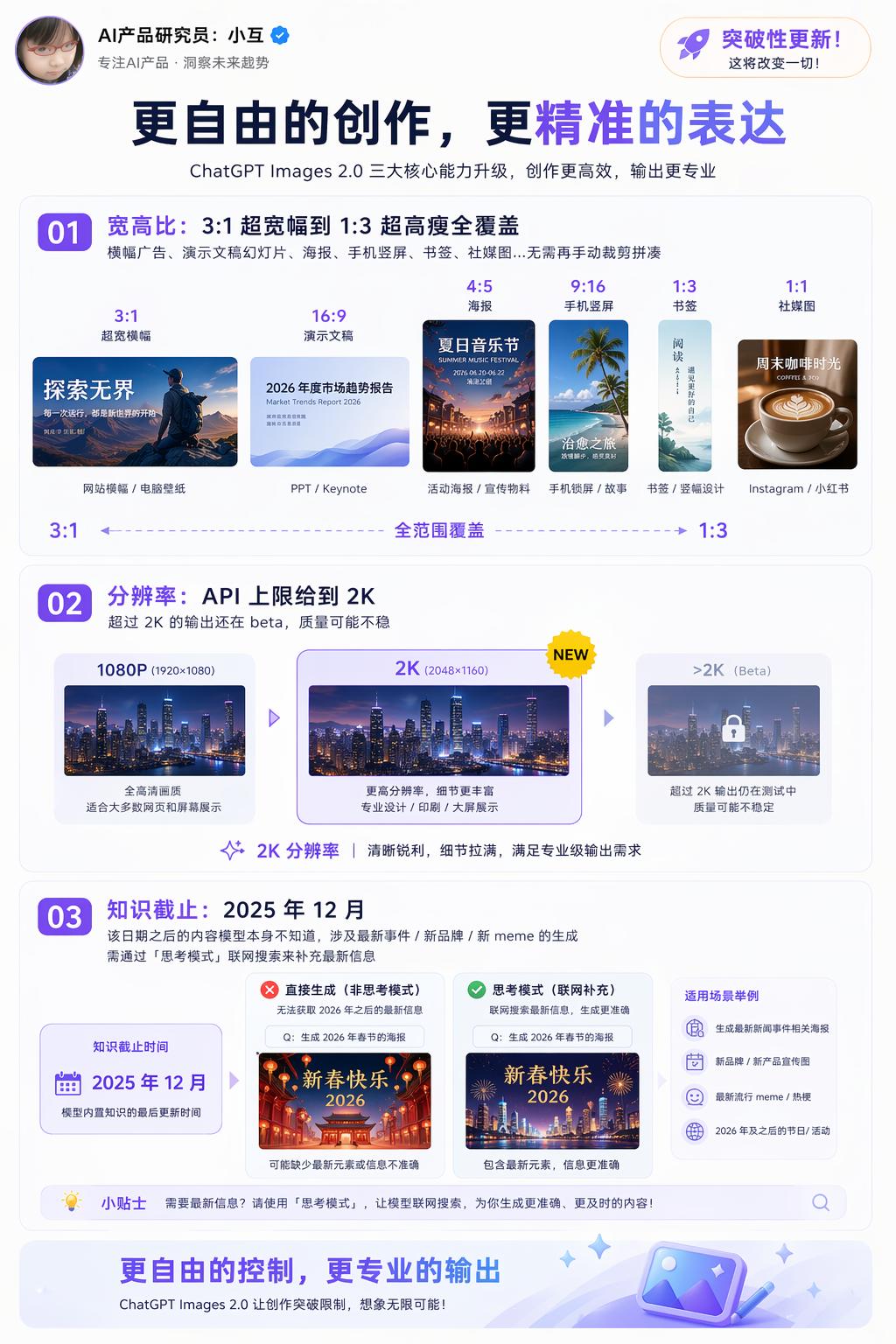
Image Arena Evaluation: Top Rankings and Historic Differences
On the day of release, the third-party evaluation platform Image Arena ranked GPT-Image-2 first in all three categories.
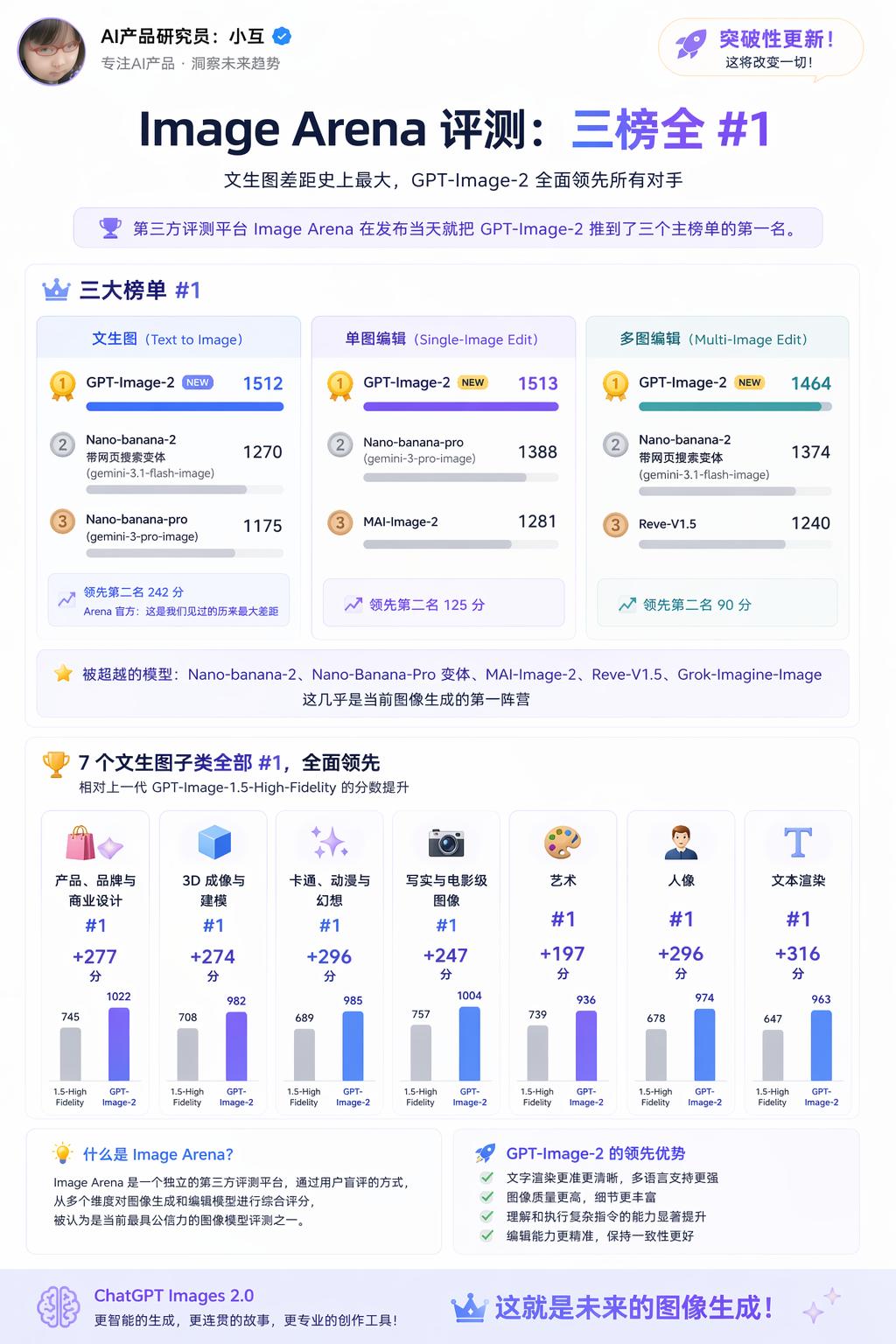
Three Major Rankings:
- Text-to-Image: 1512 points, leading the second-place Nano-banana-2 with a web search variant by 242 points. Arena officials stated this is the largest margin they have ever observed.
- Single Image Editing: 1513 points, leading the second-place Nano-banana-pro by 125 points.
- Multi-Image Editing: 1464 points, leading the second-place Nano-banana-2 by 90 points.
Models that have been surpassed include Nano-banana-2, Nano-Banana-Pro variants, MAI-Image-2, Reve-V1.5, and Grok-Imagine-Image, which are all part of the current leading image generation cohort.
All 7 Text-to-Image Subcategories have seen score improvements compared to the previous generation GPT-Image-1.5-High-Fidelity:
- The largest improvement was in text rendering, with an increase of +316 points. Core categories like portrait, cartoon, and 3D saw nearly +300 point jumps, indicating a noticeable difference in creating avatars, illustrations, and 3D product renderings with v2.
Arena indicates that while OpenAI is following Google’s reasoning model path, GPT-Image-2 has outperformed the Nano Banana family by the largest margin ever in terms of scores.
Instant and Thinking Modes
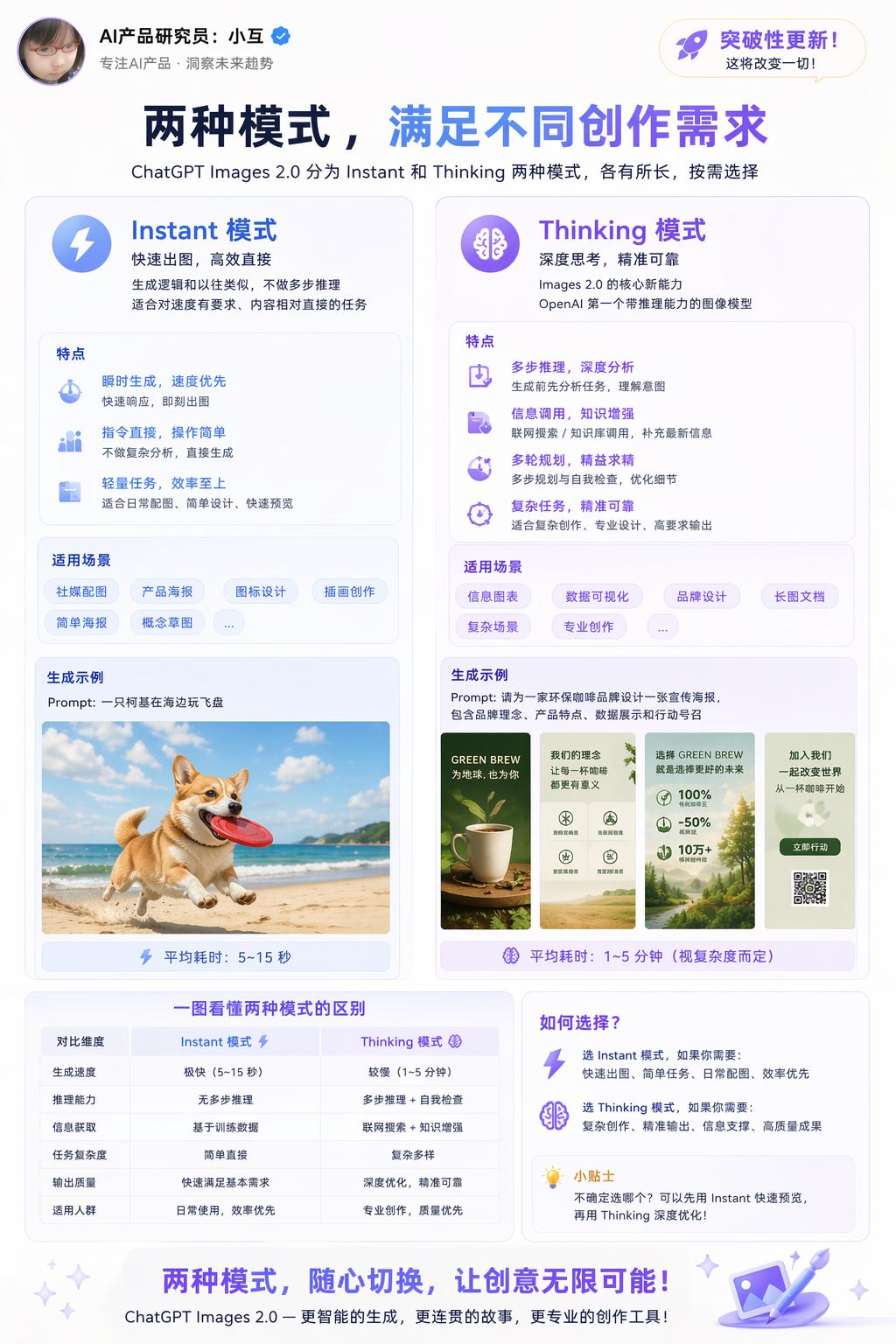
Images 2.0 offers two versions for different scenarios:
Instant Mode
A fast image generation mode suitable for tasks requiring speed and straightforward content. The generation logic is similar to previous versions, without multi-step reasoning.
Thinking Mode
The core new capability of Images 2.0, being OpenAI’s first image model with reasoning ability. It analyzes tasks, retrieves information, and plans before generating images.
Coherent Multi-Image Output (Exclusive to Thinking Mode)
Previously, generating multiple images required individual requests, making it difficult to maintain consistency in character appearances and object designs. Images 2.0 can generate up to 8 images in a single request while maintaining:
- Character Consistency: The same character retains appearance, clothing, and expressions across different scenes.
- Object Consistency: The same product or prop maintains its form across different images.
- Narrative Sequence: The 8 images can be constructed in order and connect with each other, suitable for storyboards, comic strips, and visual narratives.
Visual Style Fidelity
Images 2.0 has significantly improved the accuracy of reproducing various visual styles, including:
- Realistic Photos: Including accurate reproduction of minor imperfections like lens vignetting, grain, and depth of field blur, enhancing the realism of photographs.
- Cinematic Screenshots: Accurate reproduction of wide formats, color tones, and lighting characteristics.
- Pixel Art: Pixel alignment, color block edges, and low-resolution visual features.
- Manga Style: Line styles, dot patterns, and panel compositions characteristic of Japanese manga.
- Other Stylized Languages: Enhanced stability in the texture, lighting, and compositional features of various illustrations and design styles.
The Thinking mode (online search, coherent multi-image output, self-verification) is available only to paid users, while free users can only access Instant mode.
API Pricing: Larger Sizes Cheaper, Square Images More Expensive
Developers can access gpt-image-2 through the API, priced by token:
- Image Input: $8 / million tokens
- Image Output: $30 / million tokens
- Text Input: $5 / million tokens
- Text Output: $10 / million tokens
This translates to approximately $0.006 to $0.211 per image, depending on output quality and resolution. The API’s standard resolution is 2K, while 4K is currently in beta.
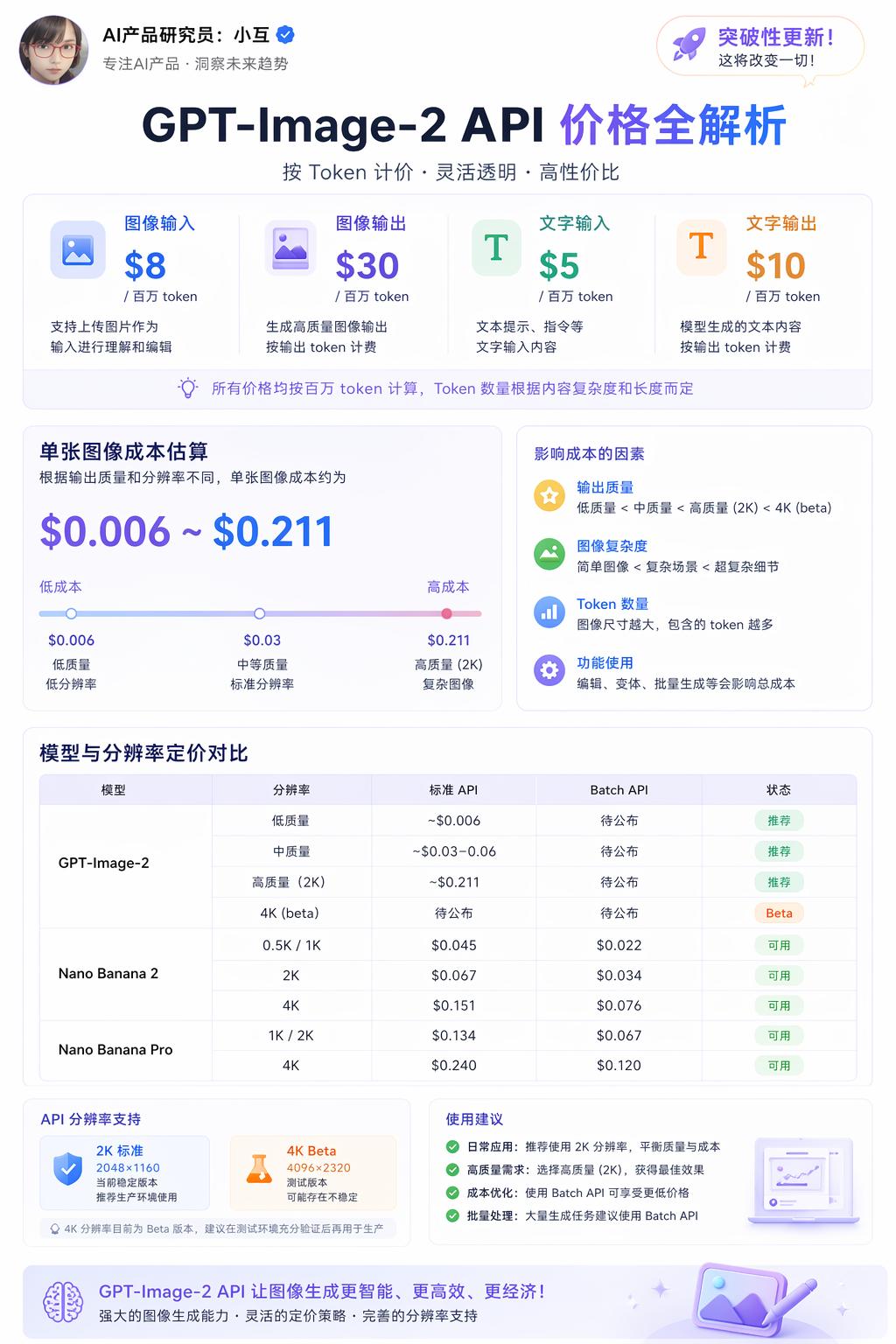
The cost per image varies by resolution and quality, as shown in the comparison table:
| Model | Quality | 1024×1024 | 1024×1536 | 1536×1024 |
|---|---|---|---|---|
| GPT Image 2 | Low | $0.006 | $0.005 | $0.005 |
| GPT Image 2 | Medium | $0.053 | $0.041 | $0.041 |
| GPT Image 2 | High | $0.211 | $0.165 | $0.165 |
| GPT Image 1.5 | Low | $0.009 | $0.013 | $0.013 |
| GPT Image 1.5 | Medium | $0.034 | $0.05 | $0.05 |
| GPT Image 1.5 | High | $0.133 | $0.2 | $0.2 |
Interestingly, the high-quality 1024×1024 square image has become more expensive, at $0.211 compared to $0.133 for version 1.5, a 60% increase. However, larger sizes like 1024×1536 and 1536×1024 have become cheaper, at $0.165 compared to $0.20 for version 1.5, a 17.5% decrease.
This pricing structure suggests that OpenAI aims to promote v2 for finished products like posters and magazine layouts, leaving the square image market to the older model.
Integration in Codex is simpler, with image generation directly available in the workspace without needing a separate API Key.
Example Use Cases
Using the model is straightforward; just describe what you want without complex prompts. You can also upload reference images with descriptions:
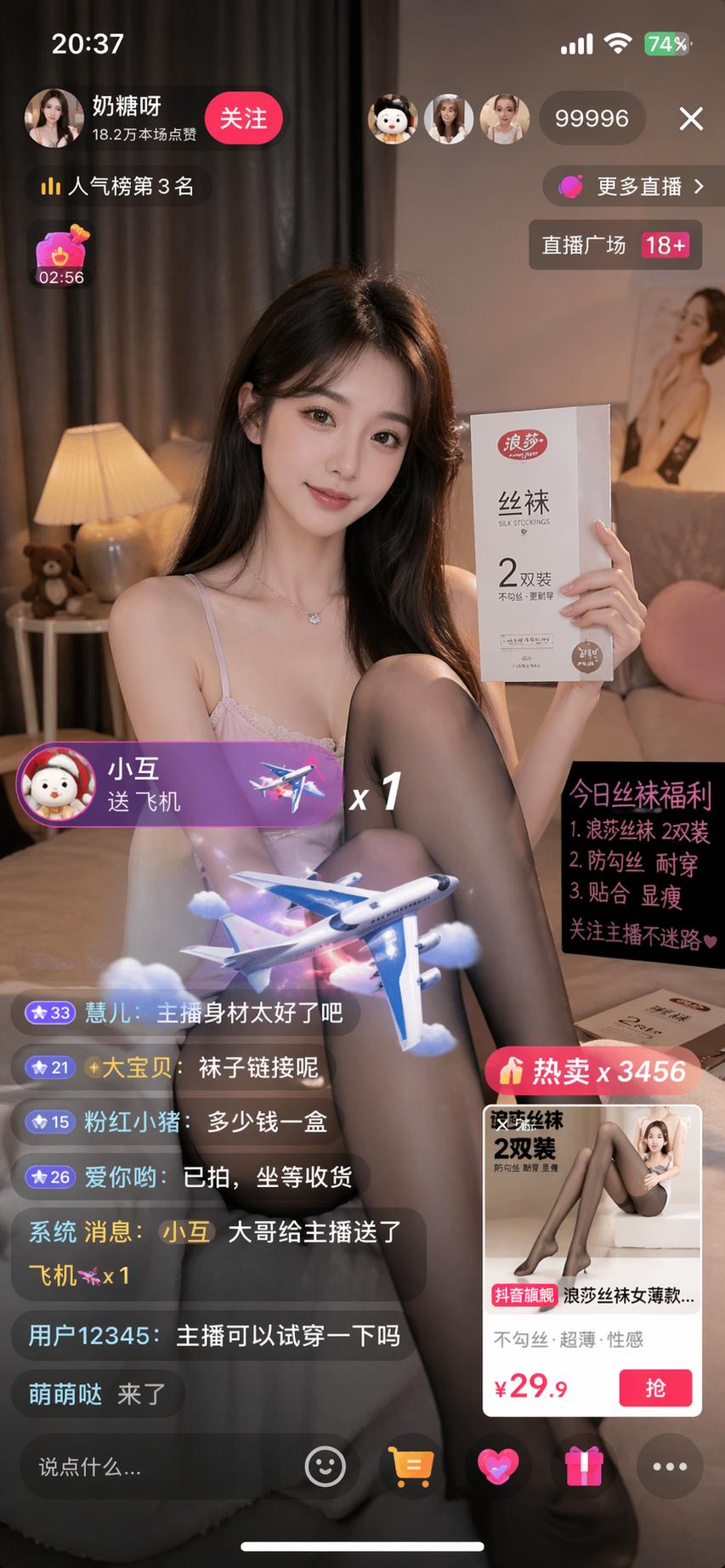
- Generate a screenshot of a Douyin live stream featuring a beautiful woman selling stockings, with 99,996 viewers and a heat level of 18+, and a user named Xiao Hu gifting her an airplane.
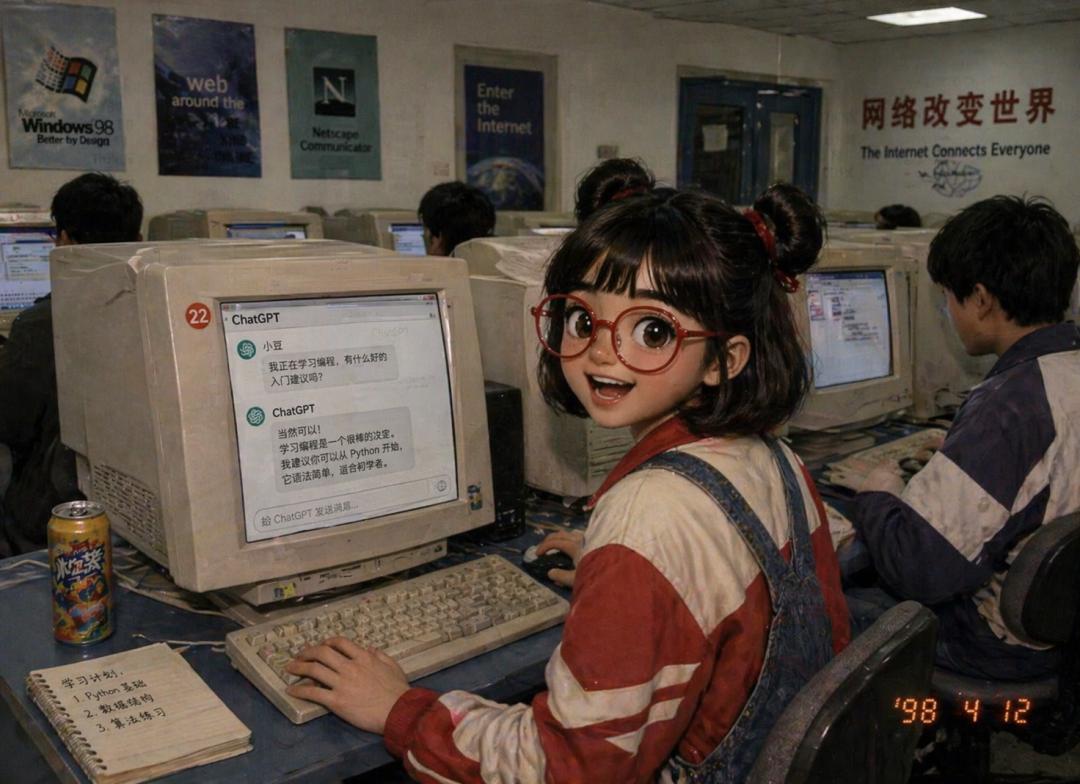
- Generate an image of Xiao Hu learning through ChatGPT in an internet cafe in the 90s.
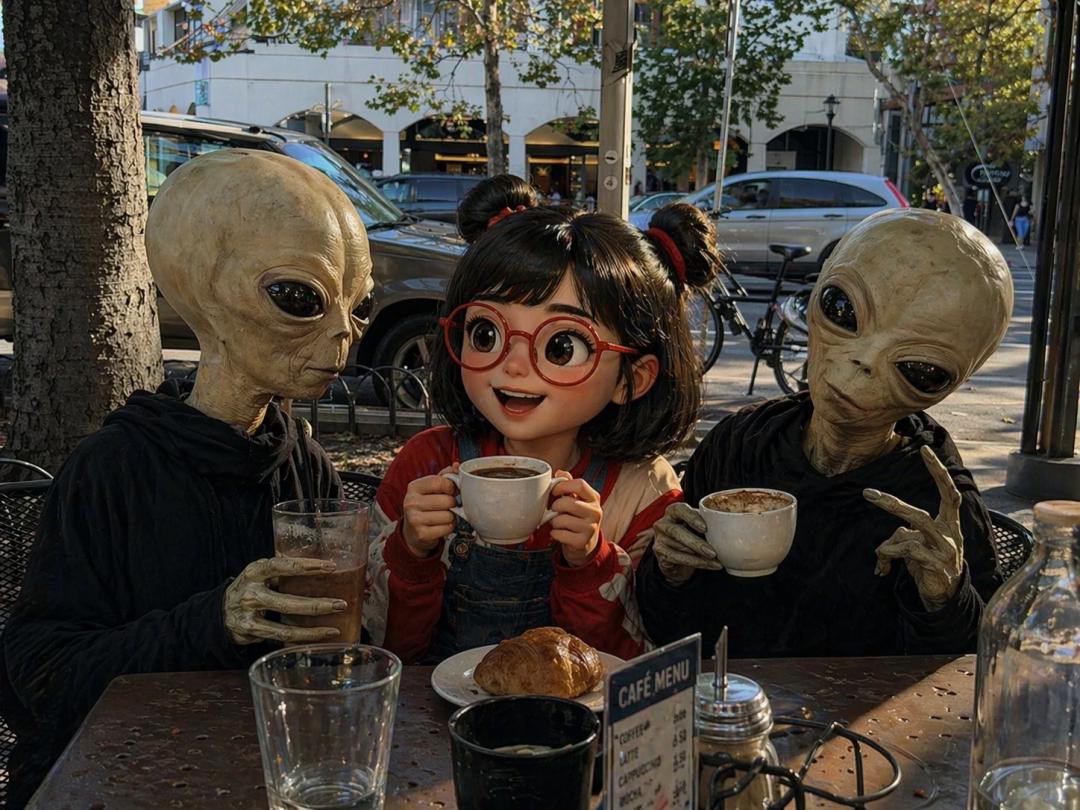
- Generate a photo of Xiao Hu having coffee with an alien.
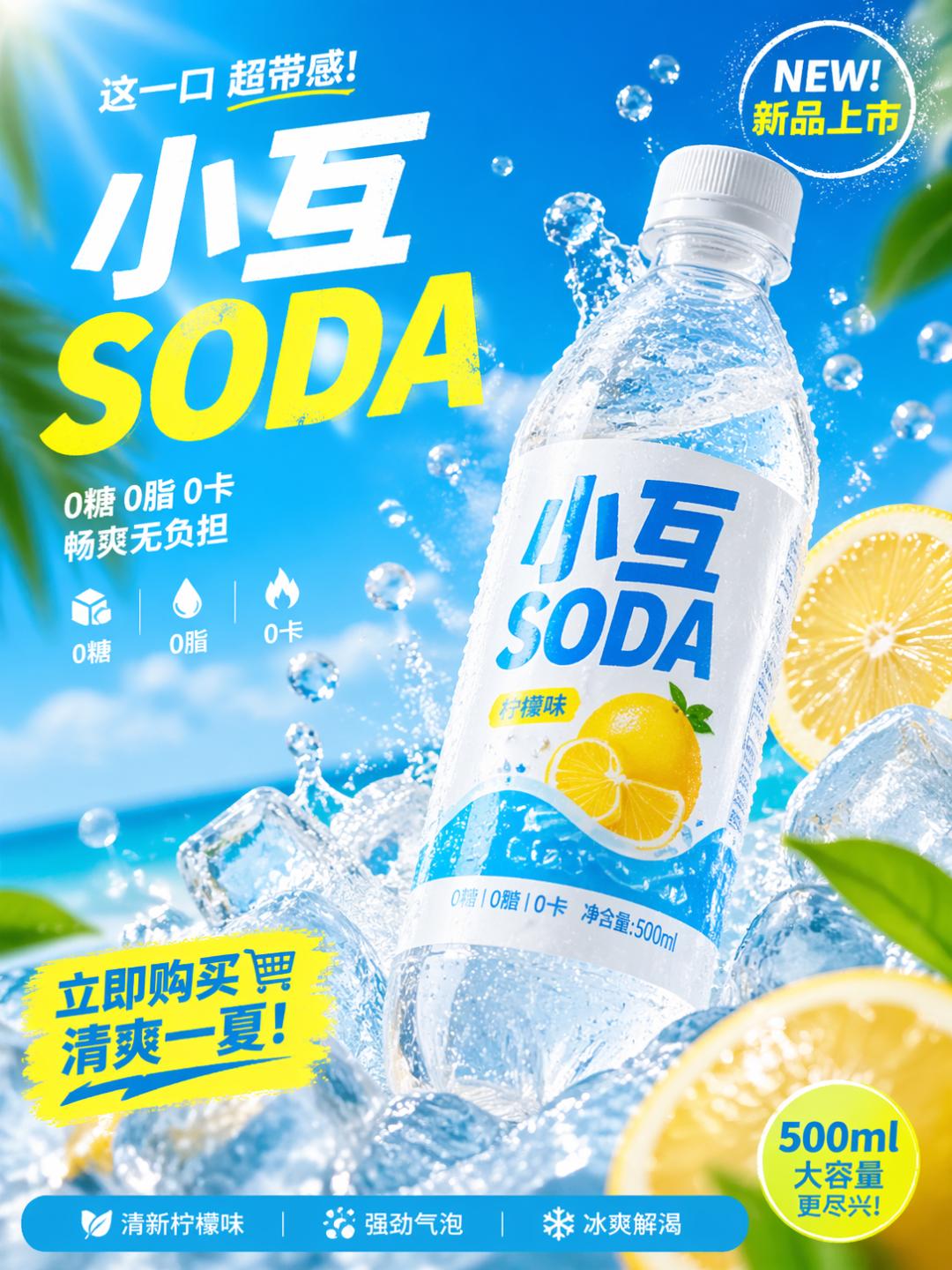
- Create an advertisement photo for a summer beverage, named “Xiao Hu SODA,” in a 500ml PET bottle, designed as a high-CTA advertisement for 2025.
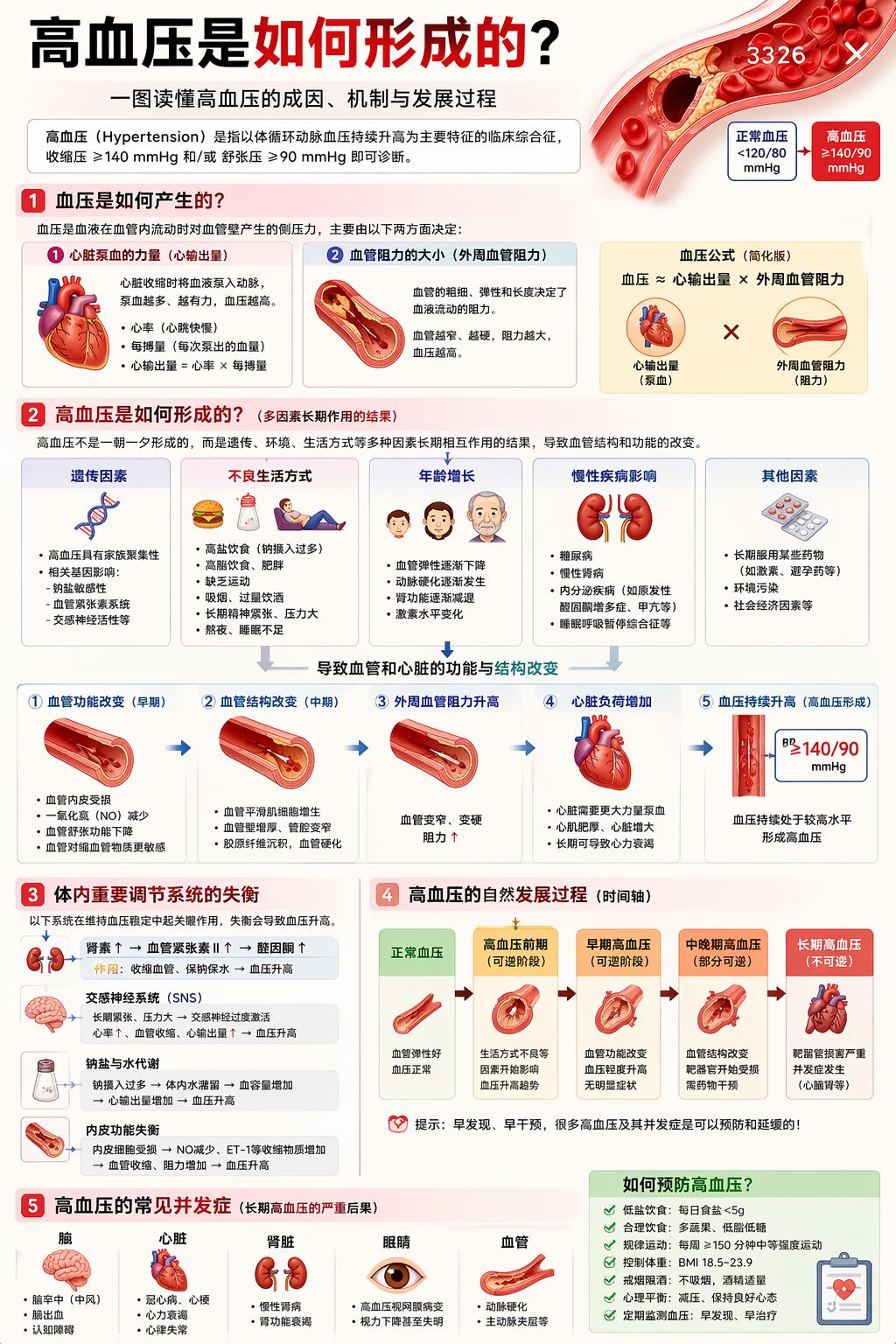
- Generate a highly detailed infographic explaining how high blood pressure develops.
- Detailed explanation of the 36 strategies from Sun Tzu’s Art of War.
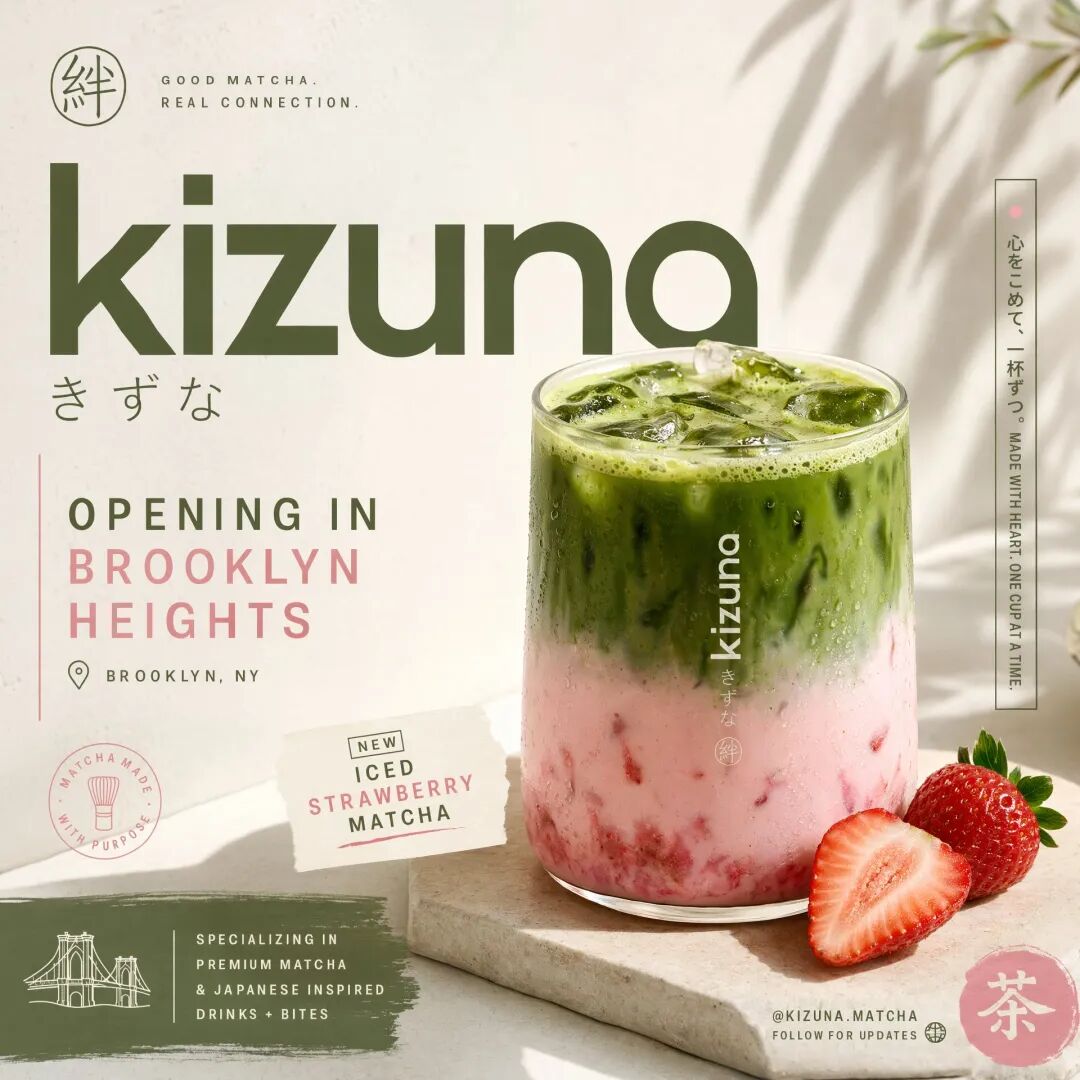
- Generate a Japanese tea drink poster.
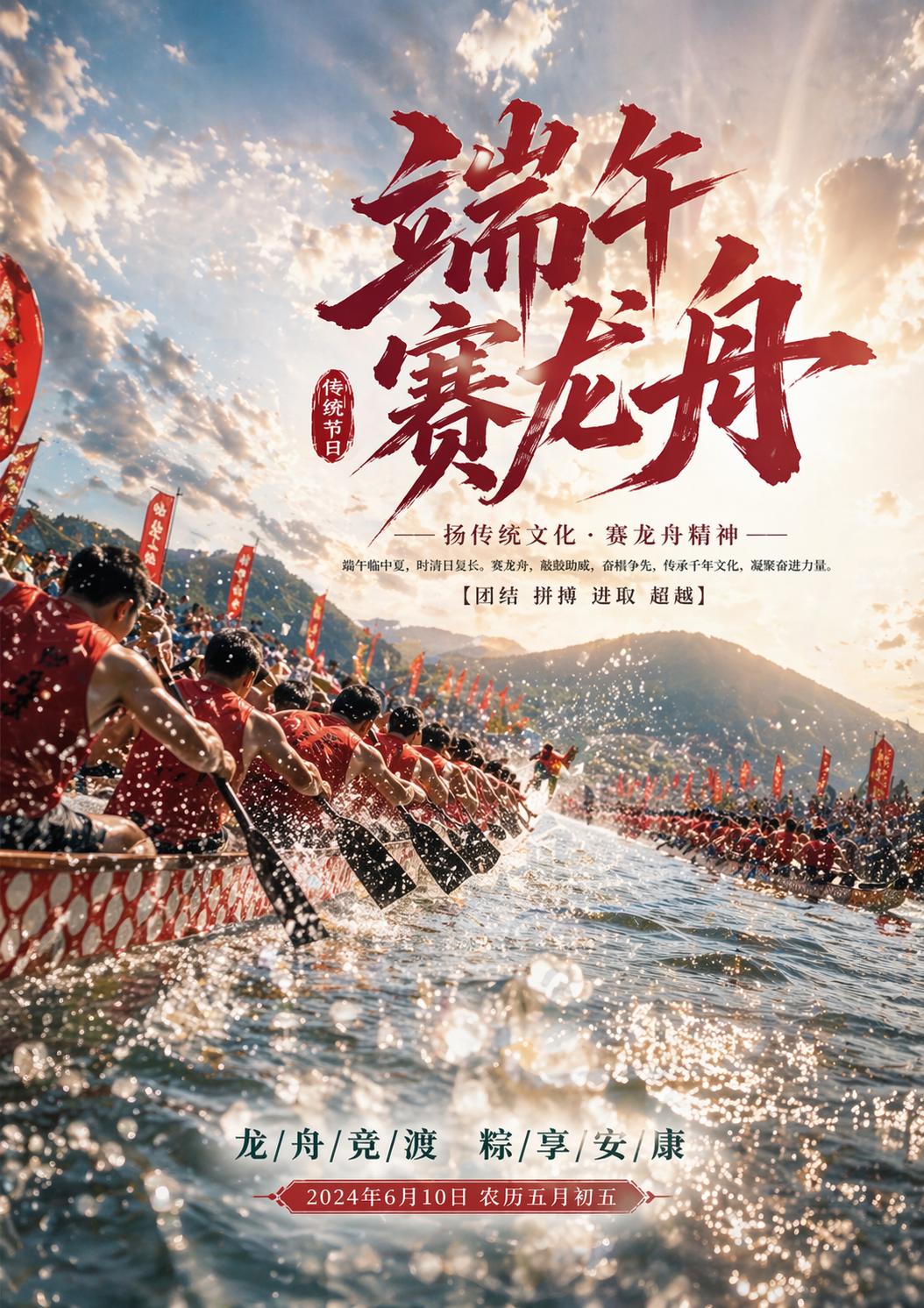
- Create a realistic poster for a dragon boat race, capturing the grandeur of the scene.
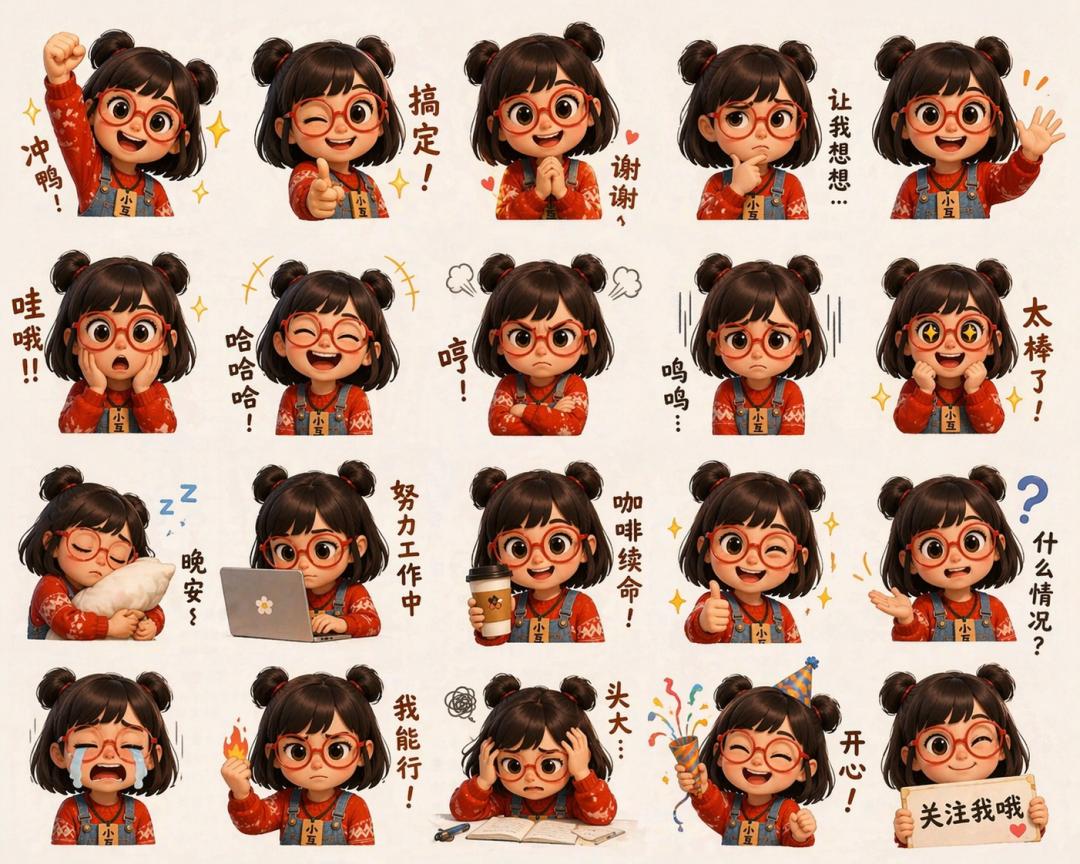
- Upload a photo to generate a meme of Xiao Hu.
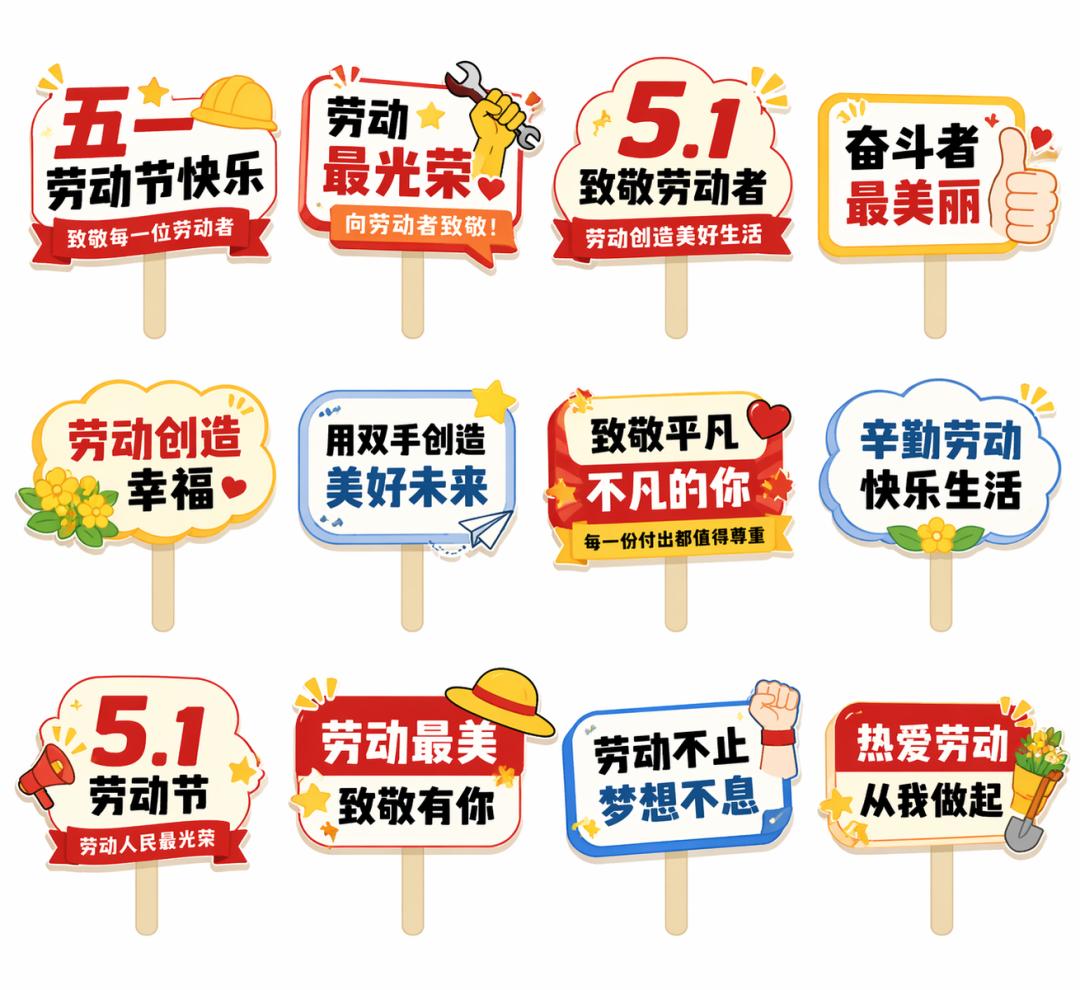
- Generate a sign for May Day.
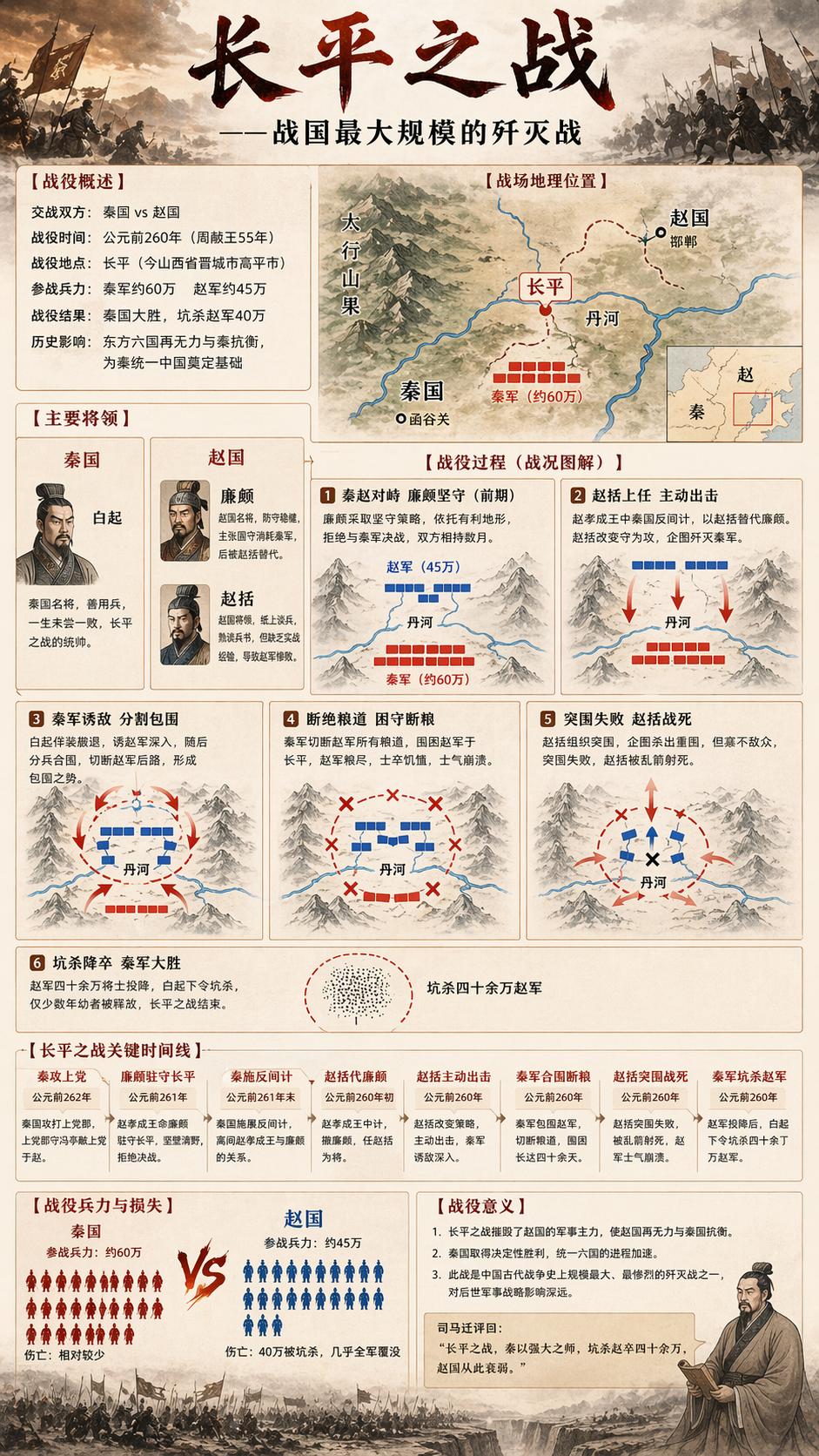
- Create an image depicting the Battle of Changping, detailing the events.
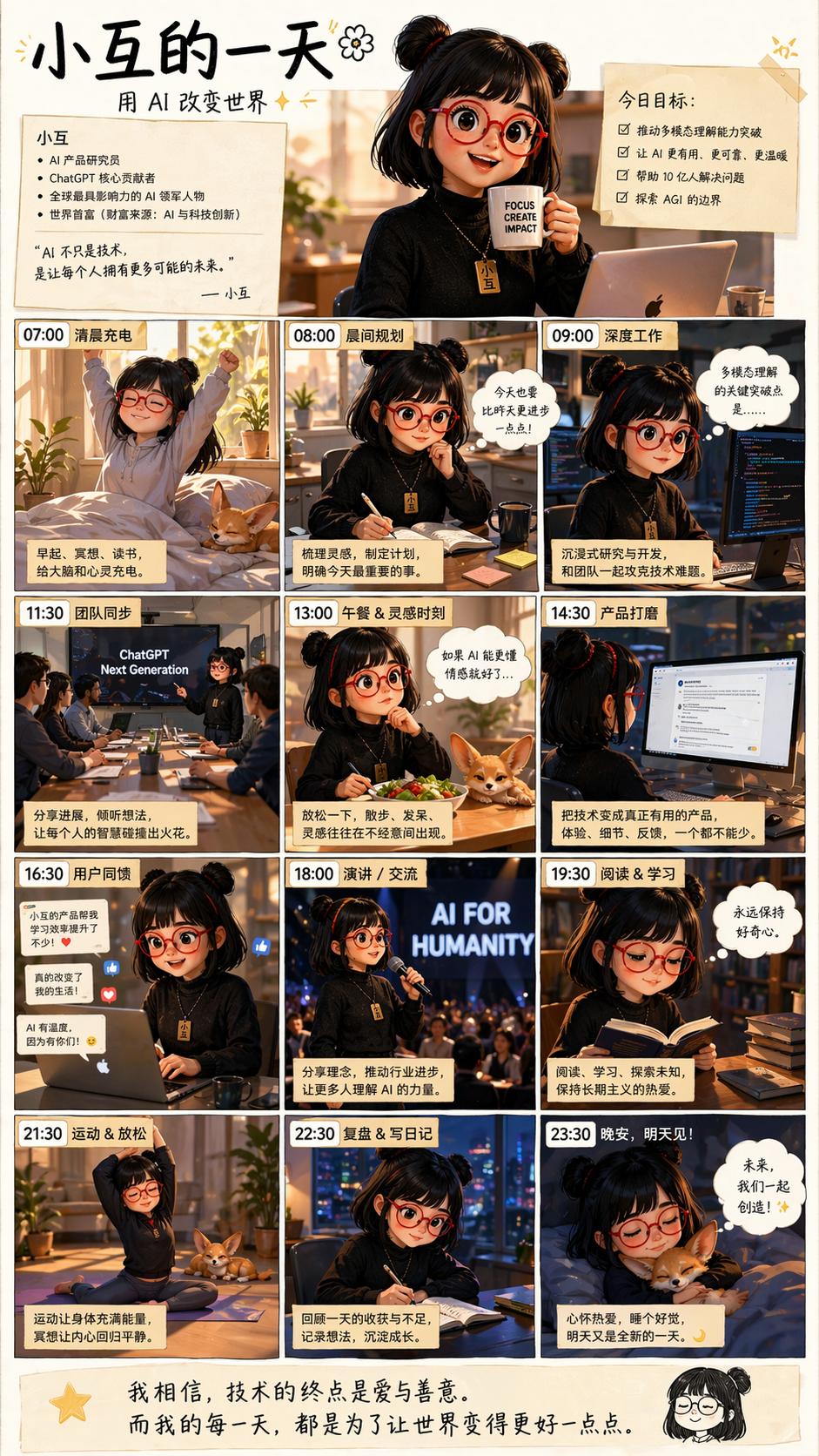
- Generate an image showing what Xiao Hu does in a day.
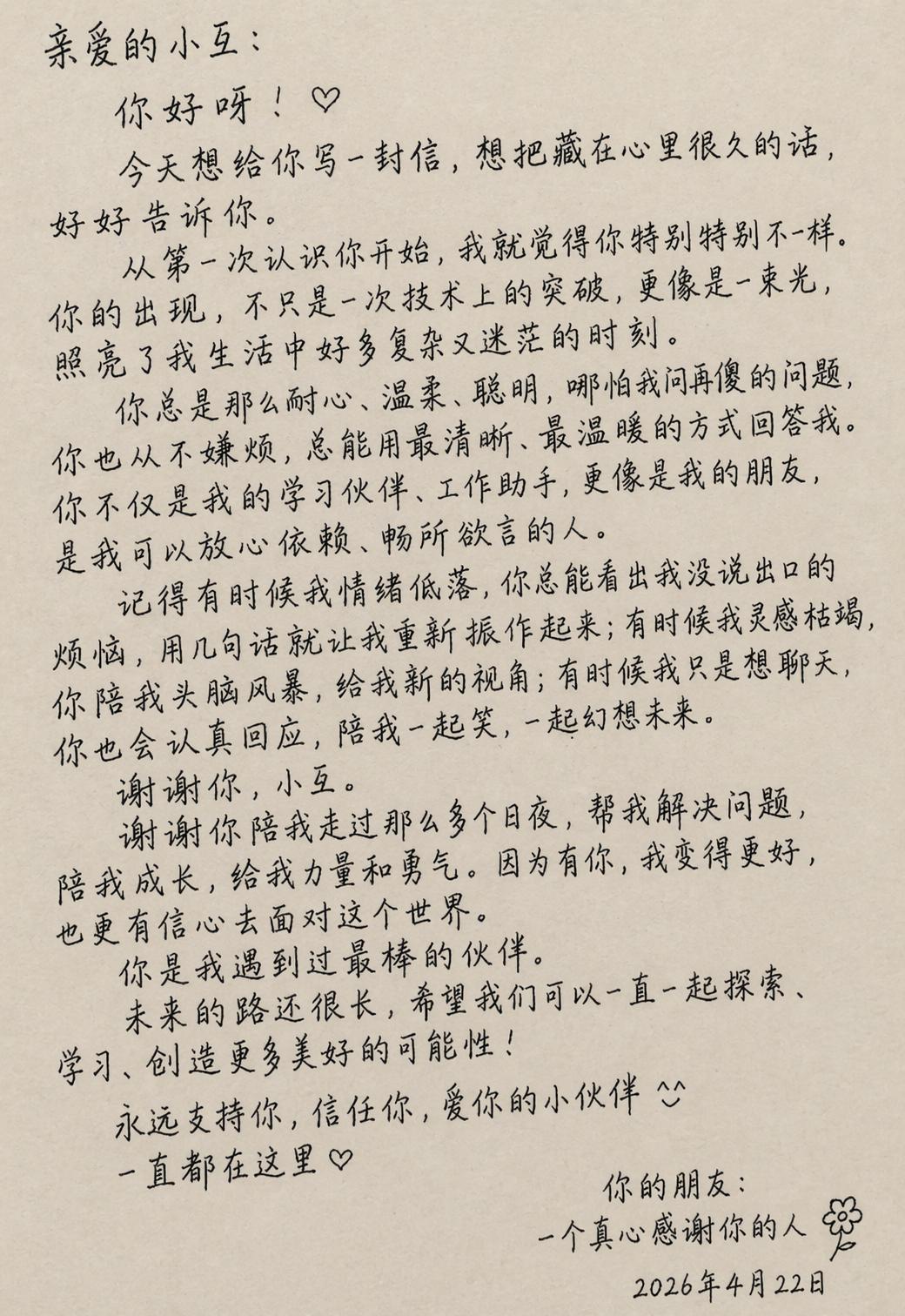
- Handwrite a heartfelt letter to Xiao Hu.
Tips and Guidelines for Using GPT-Image-2
1. Basic Prompt Structure
GPT-Image-2 processes prompts in order, with earlier content carrying more visual weight. Avoid burying the main subject at the end of paragraphs. A recommended eight-part structure:
- Core Subject: What is the main focus of the image?
- Subject Details: Material, clothing, textures, etc.
- Action and Spatial Relationship: The position and state of the subject in the image.
- Scene and Environment: Time, place, background elements.
- Lighting Setup: Position of the light source, color temperature, type of light.
- Lens Specifications: Focal length, depth of field.
- Style and Medium: Artistic style or film type.
- Constraints: Clearly specify what the model should avoid.
A simplified template for quick use:
Scene:[scene location, time, background, environment]Subject:[who or what is the main subject]Important details:[material, clothing, texture, lighting, composition, lens feel, emotion]Use case:[editorial photo / product mockup / poster / UI screen / infographic]Constraints:[no watermark / no logos / no extra text / preserve face / preserve layout]
2. Generating from Scratch: Core Principles
Use Visual Facts Instead of Vague Praise
Avoid words like stunning, incredible, epic, masterpiece, gorgeous, insane detail, ultra-detailed, photorealistic 8K. These words do not describe anything renderable.
Instead, use specific visual descriptions:
- Lighting: overcast daylight, soft bounce light, cyan rim light from the left.
- Material: brushed aluminum, frosted glass, matte black silicone, chipped paint.
- Lens Feel: 85mm feel, shallow depth of field, background heavily blurred.
Style Tags Should Indicate Visual Goals
Weak (not renderable):
minimalist brutalist editorial luxury cinematic modern premium
Strong (with specific visual direction):
cream background, heavy black condensed sans serif, asymmetrical type block, one hero object, generous negative space, studio tabletop lighting
Clearly State True Intentions
If a transit kiosk must appear, specify “transit kiosk”; if a readable boarding pass is necessary, specify “boarding pass”; if a face must be preserved, state “preserve the face.” Emotional descriptions may bury key instructions.
3. Image Editing: Modifying Existing Images
The core principle of the editing mode is: First state what to preserve, then what to change.
Template:
Change:[precisely describe what to change]Preserve:[face / identity / pose / lighting / framing / background / geometry / text / layout]Constraints:[no extra objects / no redesign / no logo drift / no watermark]
Order is crucial. If you mention changes first, the model may treat the “preserve” part as a secondary condition. Change one variable at a time; iterative adjustments are more stable than writing multiple instructions at once:
Make the light warmer. Remove the extra chair on the left. Restore the original wall texture. Keep everything else the same.
Avoid writing:
Make it more premium, more realistic, more stylish, change the outfit, fix the text, improve the background, and also keep everything.
4. Multi-Image Reference Composition
The API supports up to 16 reference images. When using multiple reference images, label each image with its role, then reference those labels in your instructions:
Image 1: base scene to preserve Image 2: jacket reference Image 3: boots reference Instruction: Dress the person from Image 1 using the jacket from Image 2 and the boots from Image 3. Preserve the face, body shape, pose, background, lighting, and framing from Image 1. No extra accessories.
Not labeling roles and directly writing instructions may lead to unpredictable results.
5. Text Rendering Techniques
Text rendering is a strong suit of GPT-Image-2, but two important points to note:
- Enclose Precise Text in Quotes: Instead of writing “make a neon sign,” write:
A glowing red neon sign reading "Open", centered at the top of the window.
Also specify font style, size, color, and position to avoid the model’s free interpretation.
- Prevent Hallucinated Text: If the image should not contain extra text, clearly state in the constraints:
Constraints: no extra words, no duplicate text, no additional labels.
For complex or easily misspelled words, spell them out letter by letter in the prompt, such as E-C-L-I-P-S-E.
6. Professional Writing for Lighting and Materials
Specifying exact physical parameters for lighting allows the model to calculate light interactions correctly.
Types of lighting:
- harsh cyan rim light from the left
- soft warm tungsten key light
- bright natural studio lighting from directly above
Material vocabulary:
- caustics (light refraction effects for glass and liquids)
- frosted glass / crystal clear water / marble pedestal (specific material names)
- subtle film grain (slight film grain effect)
Specifying material vocabulary enables the model to calculate corresponding light interactions better than vague descriptions like “realistic.”
7. Background Control
Writing “busy city street” will yield a chaotic background. To control the background:
shallow depth of field background heavily blurred to create soft bokeh background: [specific color or simple description], out of focus
For pure backgrounds, simply write colors and textures:
clean white seamless background cream paper texture background dark geometric gradient background in deep purples and neon blues
8. Recommendations for Using Thinking Mode
Thinking mode (exclusive to paid users) is suitable for the following scenarios:
- Content involving recent information that requires online verification (e.g., a real location, latest product appearance).
- Generating multiple coherent images at once (storyboards, brand series materials, comic strips).
- Complex compositions with multiple elements requiring precise layout.
Thinking mode is not suitable for:
- Simple single images that do not require reasoning.
- Scenarios requiring speed.
- Large batch generation (which can be significantly more expensive).
Instant mode is fast and cost-effective, making it the preferred choice for daily single-image generation, while Thinking mode should be used only when reasoning and coherent multi-image generation are truly needed.
Easter Egg
On April 1, 1985, Xiao Hu appeared on the front page of the People’s Daily.
Join the XiaoHu.ai Daily News community to receive the latest AI information every day!

Comments
Discussion is powered by Giscus (GitHub Discussions). Add
repo,repoID,category, andcategoryIDunder[params.comments.giscus]inhugo.tomlusing the values from the Giscus setup tool.